> ## Documentation Index
> Fetch the complete documentation index at: https://helpdesk.quso.ai/llms.txt
> Use this file to discover all available pages before exploring further.
> A short tutorial on how to add your social media accounts.
# Link my social media accounts
## Supported Social Media Platforms
You can link upto 35 social media accounts (5 accounts each of the 7 platforms listed below) on all plans. Reach out to us if you want to link any more.
Learn how to connect your [Facebook Page](/articles/connect-facebook-account)
Connect your Instagram Profile by [following the steps here](/articles/connect-facebook-account)
You can [connect your Youtube channels](/articles/connect-twitter-account) for seamless posting of videos and shorts.
Connect Your [Linkedin Profile or Page](/articles/connect-linkedin-account)
How to [Connect Your Tiktok Account](/articles/connect-tiktok-account)
## Understanding Social Sets
We support linking of "sets" of social media accounts. All paid plans come with 1 set of accounts.
Each set of social account connections consists of Facebook, Instagram, Linkedin, Twitter, Youtube, X/Twitter & Pinterest. You can purchase and setup multiple sets of social accounts.
The Lite plan offers only Tiktok account linking.\
Essential & Growth plans allow you to link all 7 social platforms listed below in sets.
Social sets are incredibly helpful when you want to connect social media accounts of multiple clients that you are working with.
## Connect Your Social Media Accounts
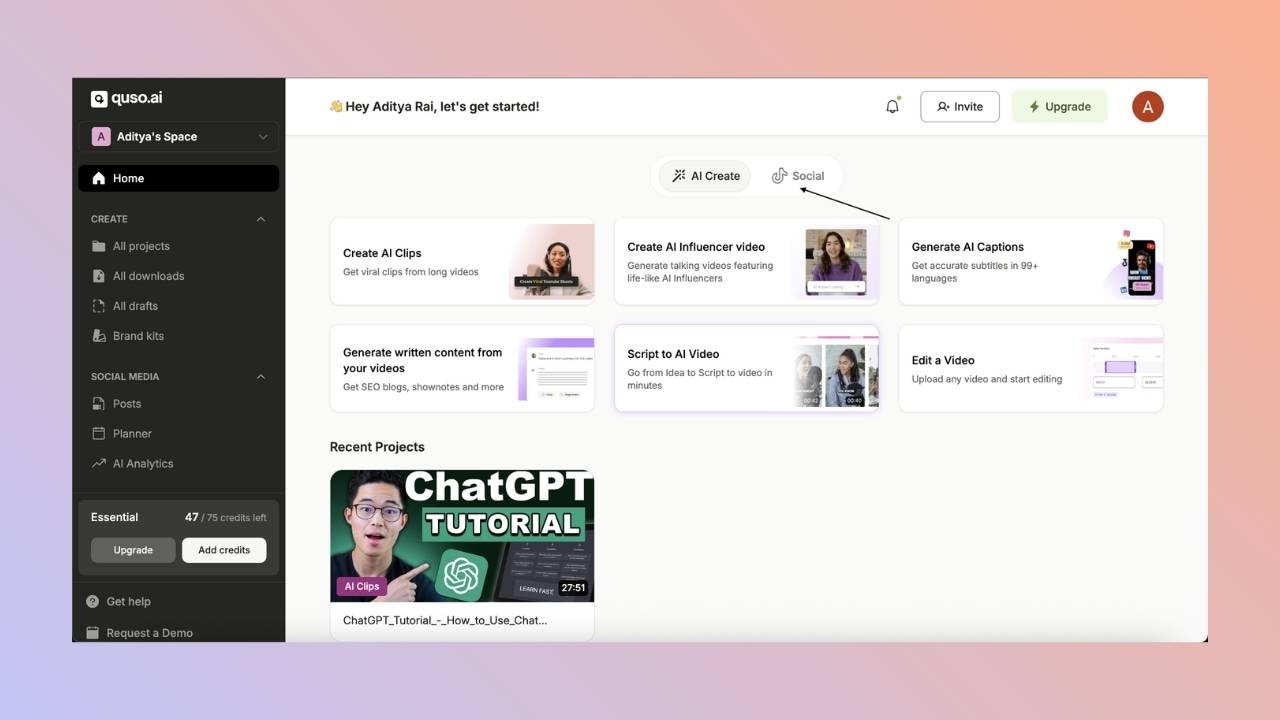
1. Click on the **Social tab** from the home page:
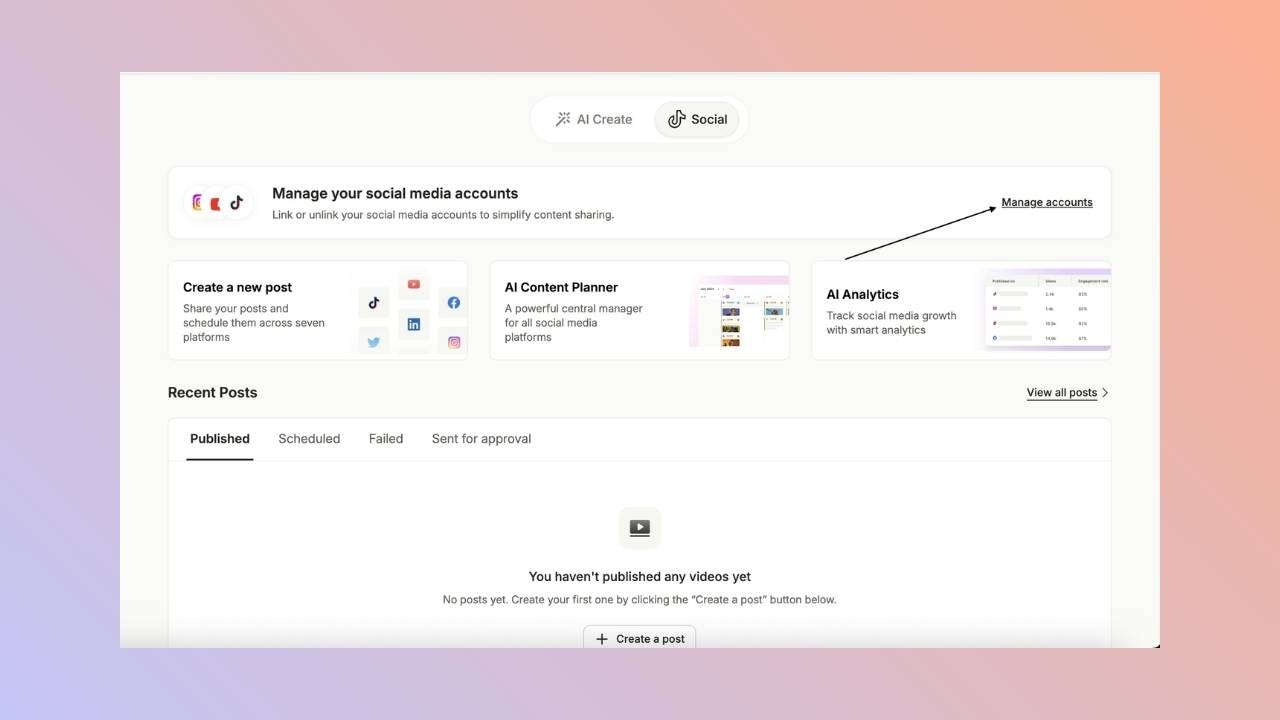
 2. Once you are in the Social tab, click on the **Manage Accounts** button
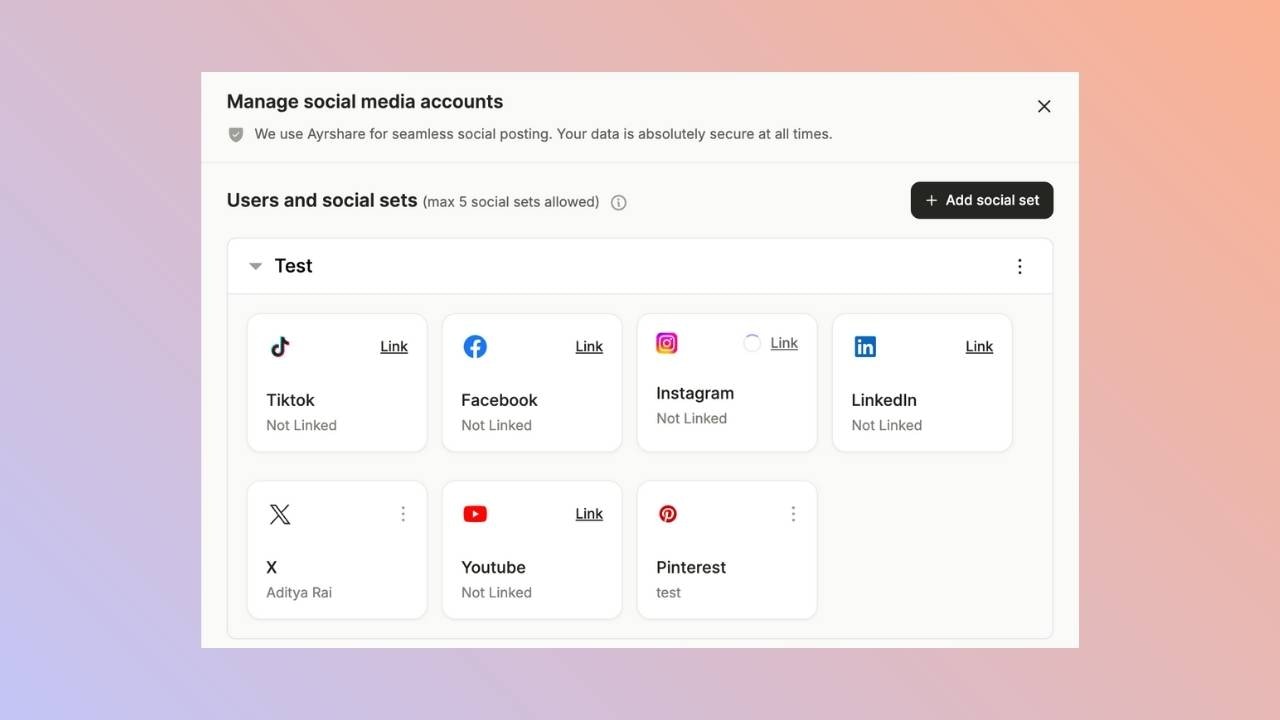
 3. You can then click on the link button for the social media account that you wish to connect with the platform.
 4. Once you click on Link, it will take you to a pop-up page where you can select the account you wish to link with our platform.
Please make sure to disable any pop-up blocker extensions from your web browser while linking your account.
## All Set!
You’ve successfully connected your social media accounts.
Now you can start creating, scheduling, and publishing content directly from our platform.
4. Once you click on Link, it will take you to a pop-up page where you can select the account you wish to link with our platform.
Please make sure to disable any pop-up blocker extensions from your web browser while linking your account.
## All Set!
You’ve successfully connected your social media accounts.
Now you can start creating, scheduling, and publishing content directly from our platform.