> ## Documentation Index
> Fetch the complete documentation index at: https://helpdesk.quso.ai/llms.txt
> Use this file to discover all available pages before exploring further.
# Connect LinkedIn Account/Page
> Follow these simple steps and connect your LinkedIn account.
You can link either your LinkedIn company page or your personal LinkedIn account. When authorizing LinkedIn with our platform, you will be redirected to LinkedIn to log in and authorize Ayrshare to access your LinkedIn account.
## Linking LinkedIn
### **Go to the Manage Accounts page**
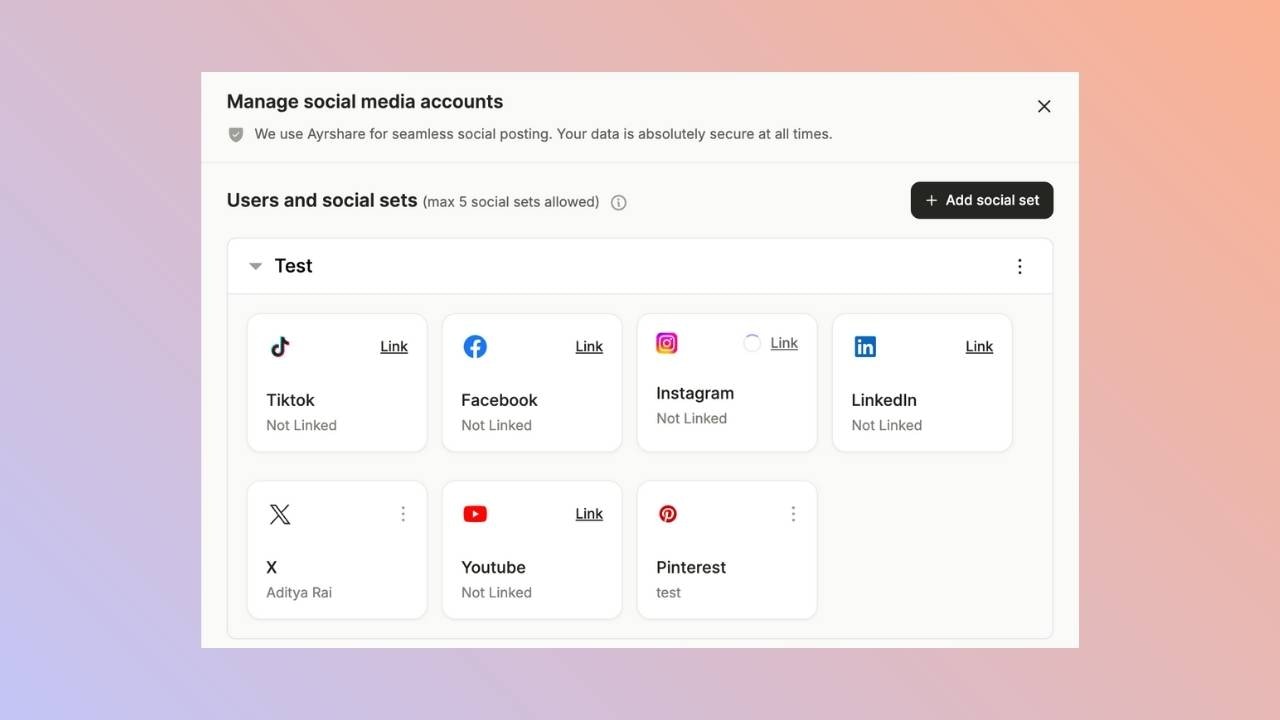
Open the manage accounts page from the social tab and click on the link button. This will open a new tab.
 ### **Click to Link LinkedIn**
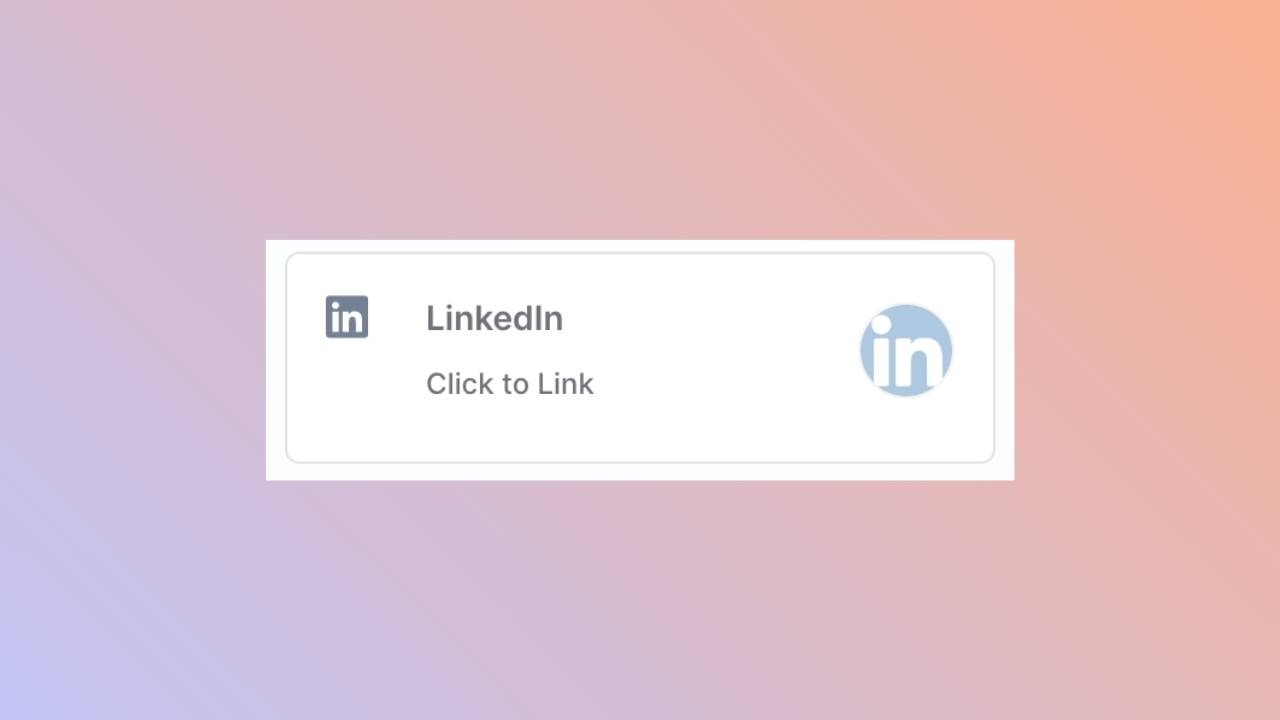
Click the LinkedIn icon on the Social Accounts page.
### **Click to Link LinkedIn**
Click the LinkedIn icon on the Social Accounts page.
 ### **Log in to LinkedIn**
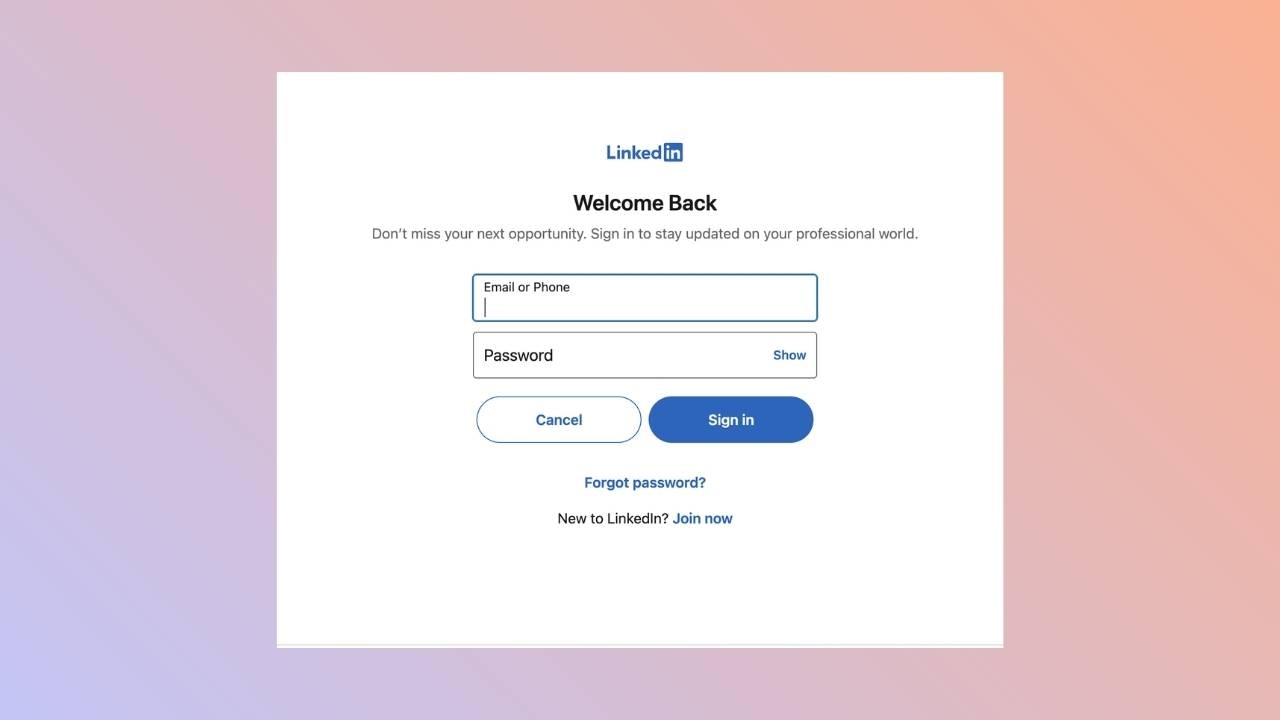
The page will be redirected to LinkedIn and request you to log in to your LinkedIn account. If you have previously authorized Ayrshare with LinkedIn, this step may be skipped.
### **Log in to LinkedIn**
The page will be redirected to LinkedIn and request you to log in to your LinkedIn account. If you have previously authorized Ayrshare with LinkedIn, this step may be skipped.
 ### **Accept Authorization Permissions**
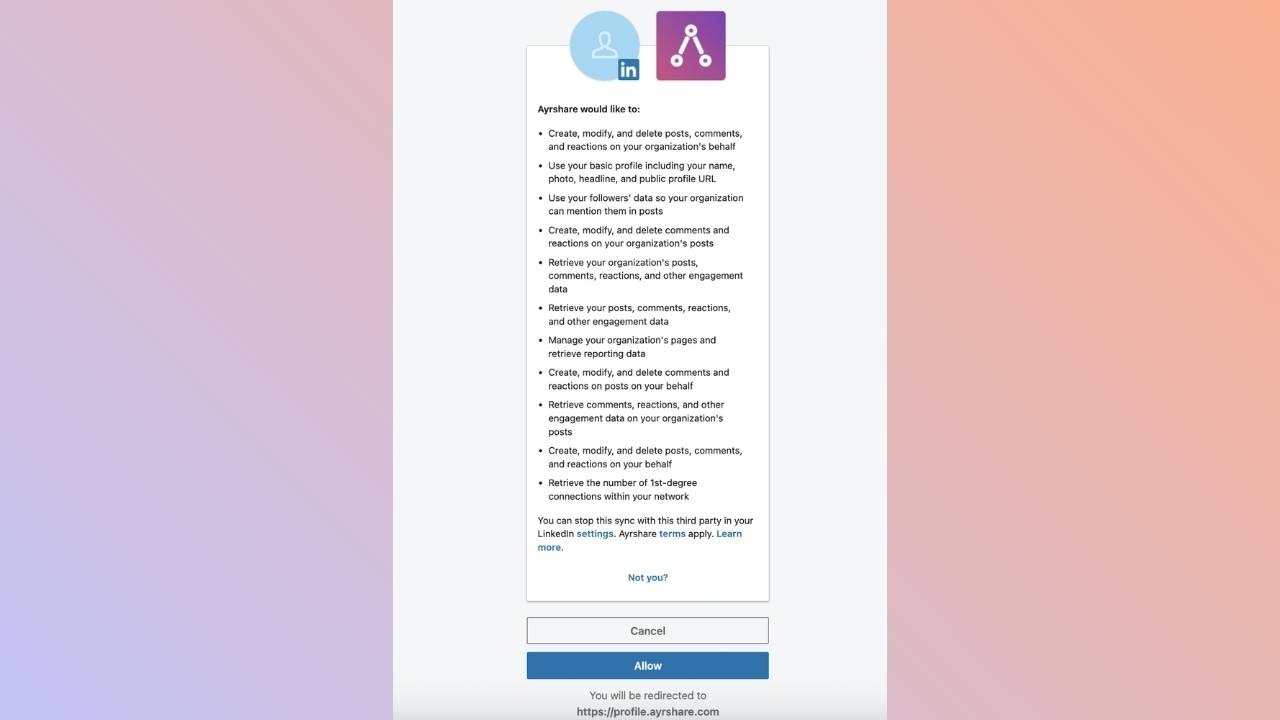
Accept the authorization permissions Ayrshare is requesting.
### **Accept Authorization Permissions**
Accept the authorization permissions Ayrshare is requesting.
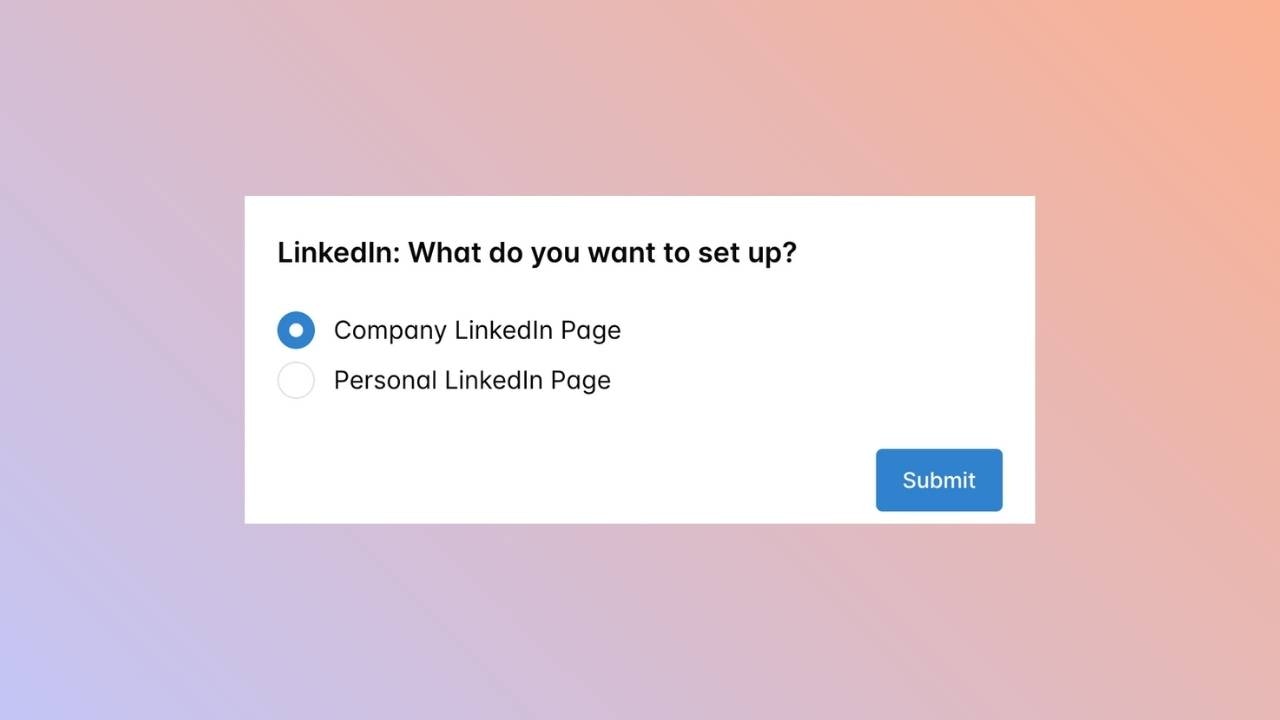
 ### **Select Company or Personal LinkedIn Account**
You will be redirected back to Ayrshare where you can select the LinkedIn account type you wish to link with Ayrshare. You may either choose a LinkedIn company page or your personal LinkedIn account.
If selecting to link a company page, the LinkedIn user must be a Super Admin or Content Admin of the company page to link it with Ayrshare.
### **Select Company or Personal LinkedIn Account**
You will be redirected back to Ayrshare where you can select the LinkedIn account type you wish to link with Ayrshare. You may either choose a LinkedIn company page or your personal LinkedIn account.
If selecting to link a company page, the LinkedIn user must be a Super Admin or Content Admin of the company page to link it with Ayrshare.
 ### **Select a Company Page**
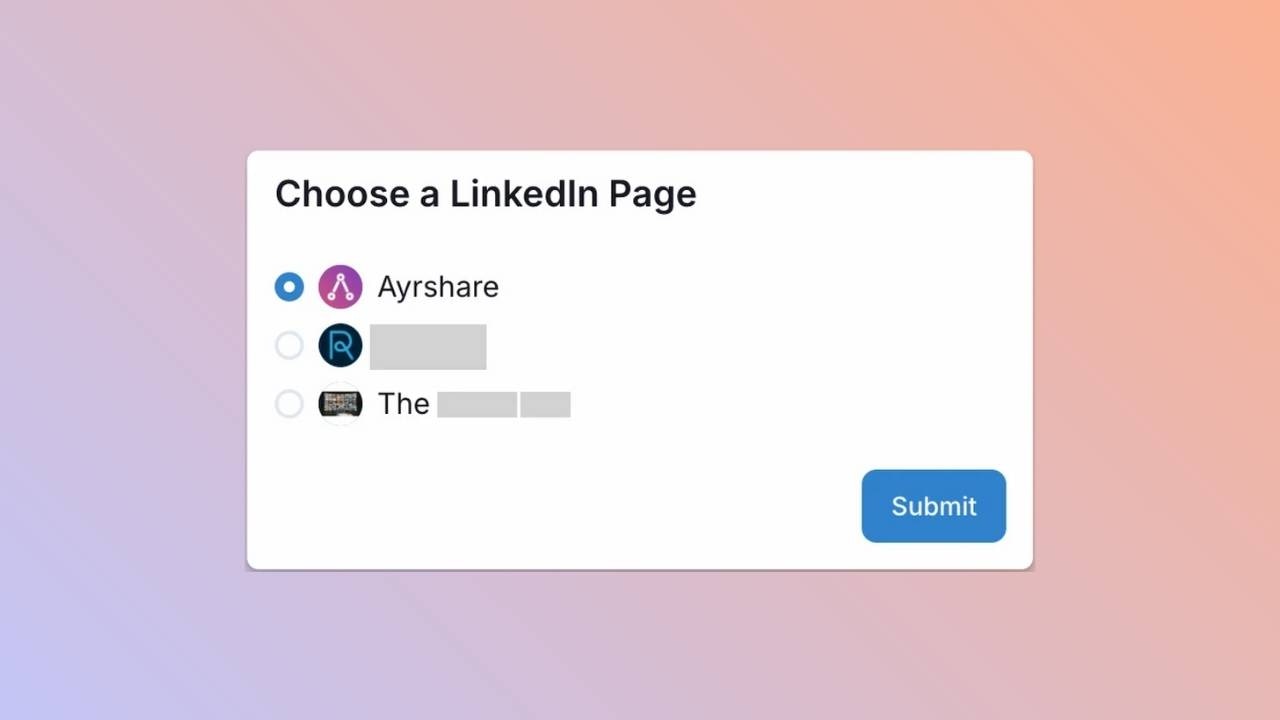
If you choose “Company Page”, you will see a list of company pages you can select from. Remember, the LinkedIn user must be a Super Admin or Content Admin of the company page to link it with Ayrshare.
### **Select a Company Page**
If you choose “Company Page”, you will see a list of company pages you can select from. Remember, the LinkedIn user must be a Super Admin or Content Admin of the company page to link it with Ayrshare.
 ### **Confirmation**
Your Social Accounts page will now be updated with your LinkedIn account.
### **Confirmation**
Your Social Accounts page will now be updated with your LinkedIn account.
 ## You're All Set!
You’ve successfully linked your LinkedIn account to our platform! \
You can now **post or schedule media** directly through our dashboard with ease.\
Need more help? Feel free to reach out to our support team anytime.
### Guidelines for Tagging People and Companies on LinkedIn
Mention another LinkedIn member profile by adding `@vanity_name` or `@[Person Full Name]` in the post text.
1. `@vanity_name` is the vanity name of the member profile. For example, in the member’s profile URL `https://www.linkedin.com/in/vanity_name/`, the vanity name is `vanity_name`.
2. `@[John Smith]` is the person’s full name. For example, if the person’s full name is `John Smith`, the mention would be `@[John Smith]`.
We recommend method 1 to avoid any ambiguity.\
So, in this case, to mention Root Inc., the user should use @rootinsurance.\
\
Example -\
"Finding a Better Way with Mobile Telematics @\[Alex Timm], Co-Founder & CEO, @rootinsurance, shares the inspiration behind Root to revolutionize the insurance industry by leveraging mobile telematics...."\
\
Caveats to keep in mind -
1. You must have a LinkedIn company page connected to your Quso account to mention member profiles. If you connect your own personal LinkedIn account, you will not be able to mention other people’s profiles.
2. LinkedIn only allows mentioning people who follow your organization/company page.
## **LinkedIn Troubleshooting**
The most common error you may encounter is a company page not showing in the list of available companies. This can be caused by the LinkedIn user not being a Super Admin or Content Admin of the company page and can be fixed by a Super Admin of the company page **updating the user’s page role**.
## You're All Set!
You’ve successfully linked your LinkedIn account to our platform! \
You can now **post or schedule media** directly through our dashboard with ease.\
Need more help? Feel free to reach out to our support team anytime.
### Guidelines for Tagging People and Companies on LinkedIn
Mention another LinkedIn member profile by adding `@vanity_name` or `@[Person Full Name]` in the post text.
1. `@vanity_name` is the vanity name of the member profile. For example, in the member’s profile URL `https://www.linkedin.com/in/vanity_name/`, the vanity name is `vanity_name`.
2. `@[John Smith]` is the person’s full name. For example, if the person’s full name is `John Smith`, the mention would be `@[John Smith]`.
We recommend method 1 to avoid any ambiguity.\
So, in this case, to mention Root Inc., the user should use @rootinsurance.\
\
Example -\
"Finding a Better Way with Mobile Telematics @\[Alex Timm], Co-Founder & CEO, @rootinsurance, shares the inspiration behind Root to revolutionize the insurance industry by leveraging mobile telematics...."\
\
Caveats to keep in mind -
1. You must have a LinkedIn company page connected to your Quso account to mention member profiles. If you connect your own personal LinkedIn account, you will not be able to mention other people’s profiles.
2. LinkedIn only allows mentioning people who follow your organization/company page.
## **LinkedIn Troubleshooting**
The most common error you may encounter is a company page not showing in the list of available companies. This can be caused by the LinkedIn user not being a Super Admin or Content Admin of the company page and can be fixed by a Super Admin of the company page **updating the user’s page role**.