> ## Documentation Index
> Fetch the complete documentation index at: https://helpdesk.quso.ai/llms.txt
> Use this file to discover all available pages before exploring further.
> Follow these simple steps and connect your Pinterest board.
# Connect Pinterest Board
## **Pinterest Board Setup**
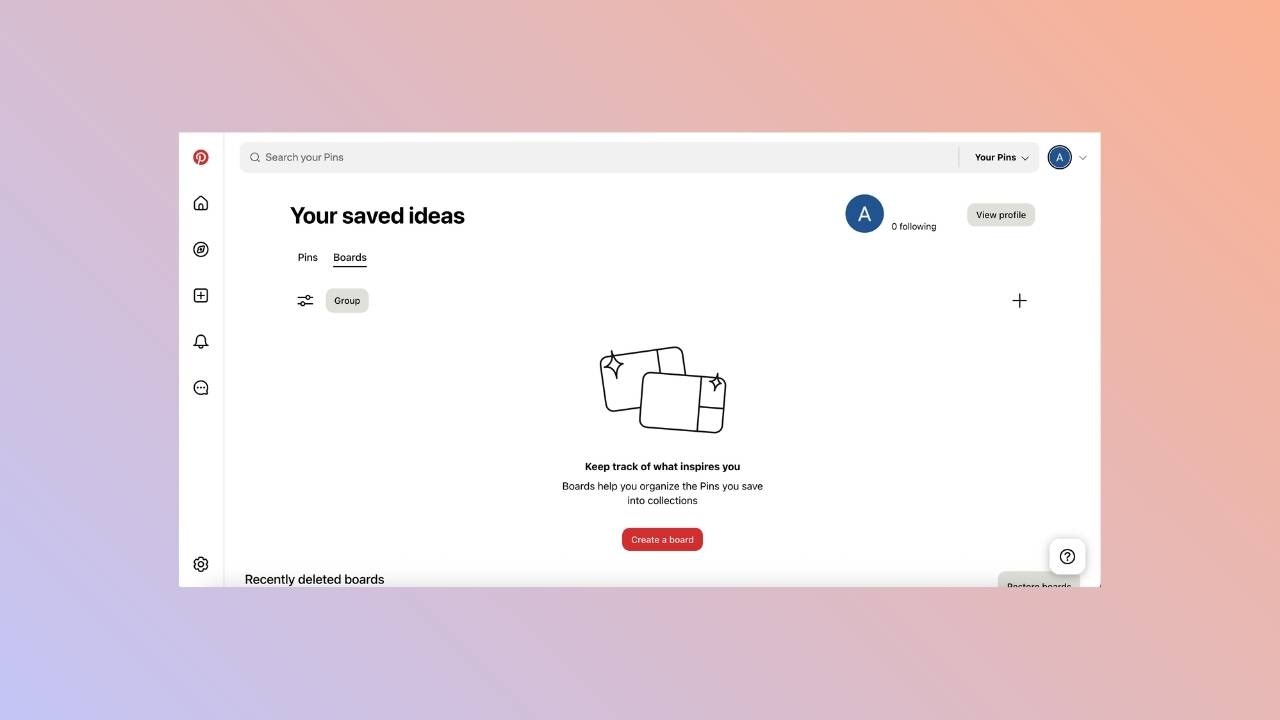
Before linking your Pinterest account, you must have at least one Pinterest board set up. To do so, navigate to your Pinterest profile page and click on the " Create a board" option. Follow the instructions to create a new board.
 ## **Linking Pinterest**
### **Go to the Manage accounts page**
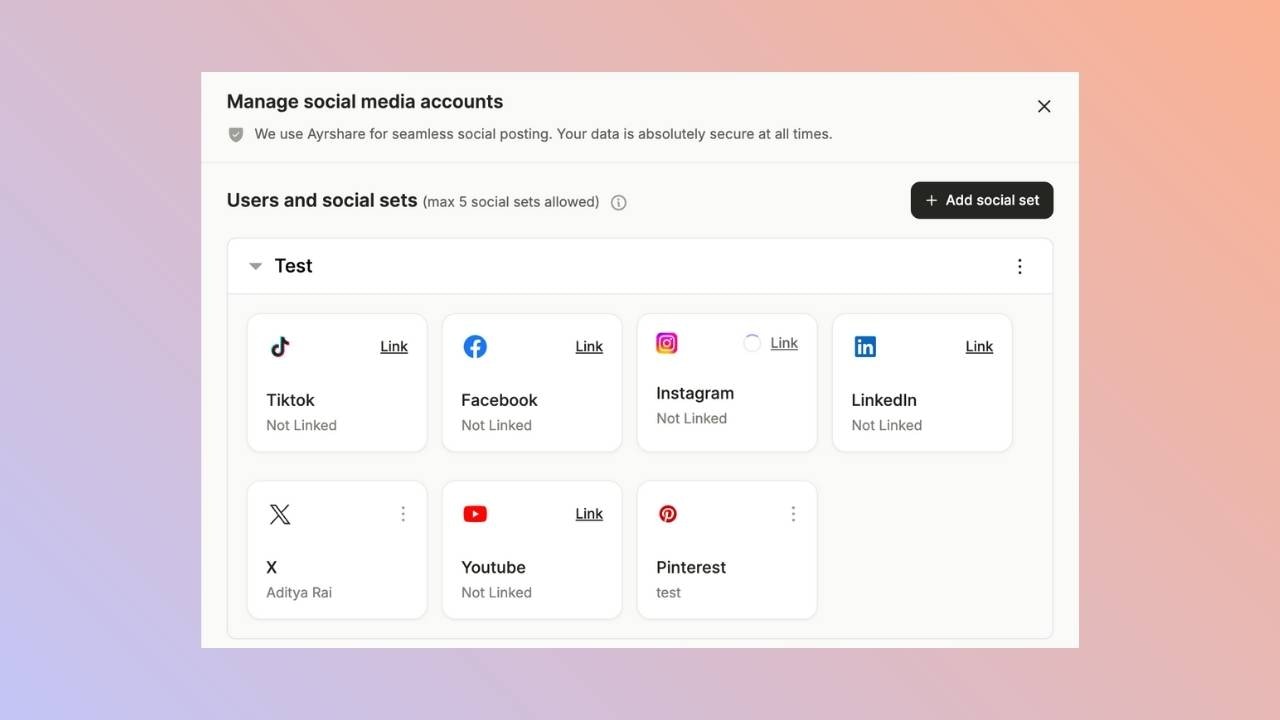
Open the manage accounts page from the social tab and click on the link button. This will open a new tab.
## **Linking Pinterest**
### **Go to the Manage accounts page**
Open the manage accounts page from the social tab and click on the link button. This will open a new tab.
 ### **Click to Link Pinterest**
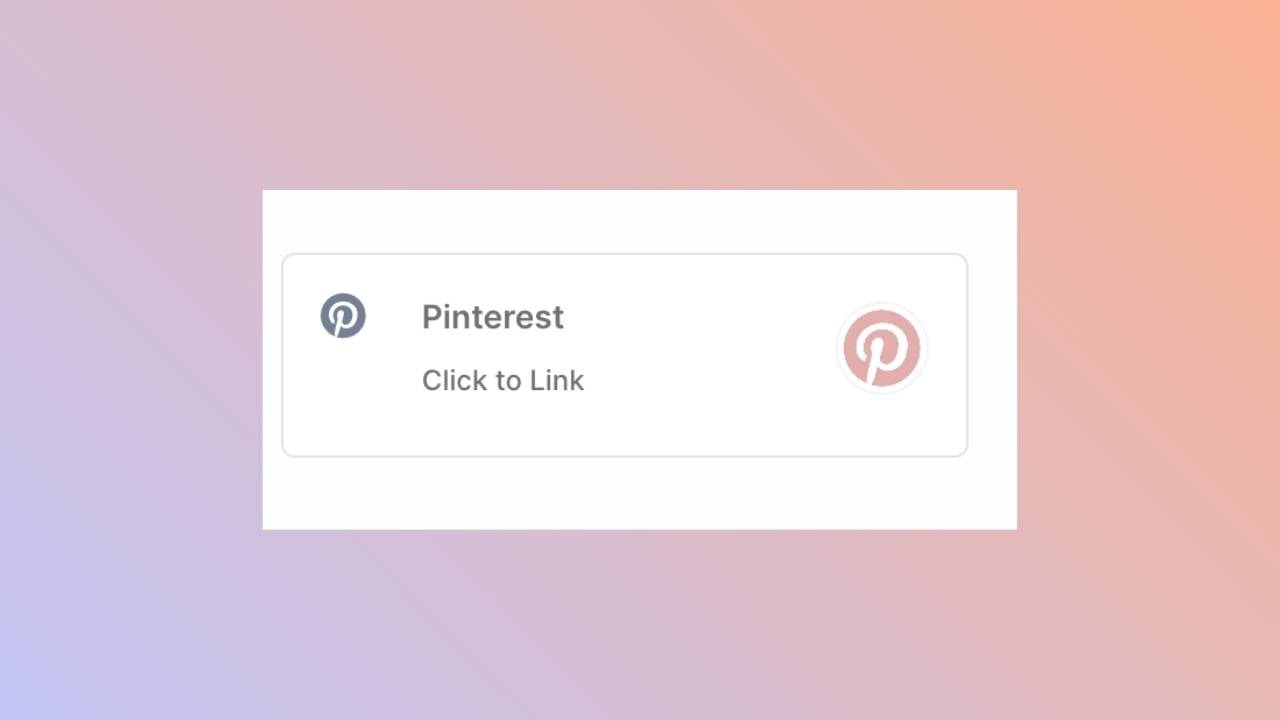
Click the Pinterest icon on the Social Accounts page.
### **Click to Link Pinterest**
Click the Pinterest icon on the Social Accounts page.
 ### **First Time Pinterest Login**
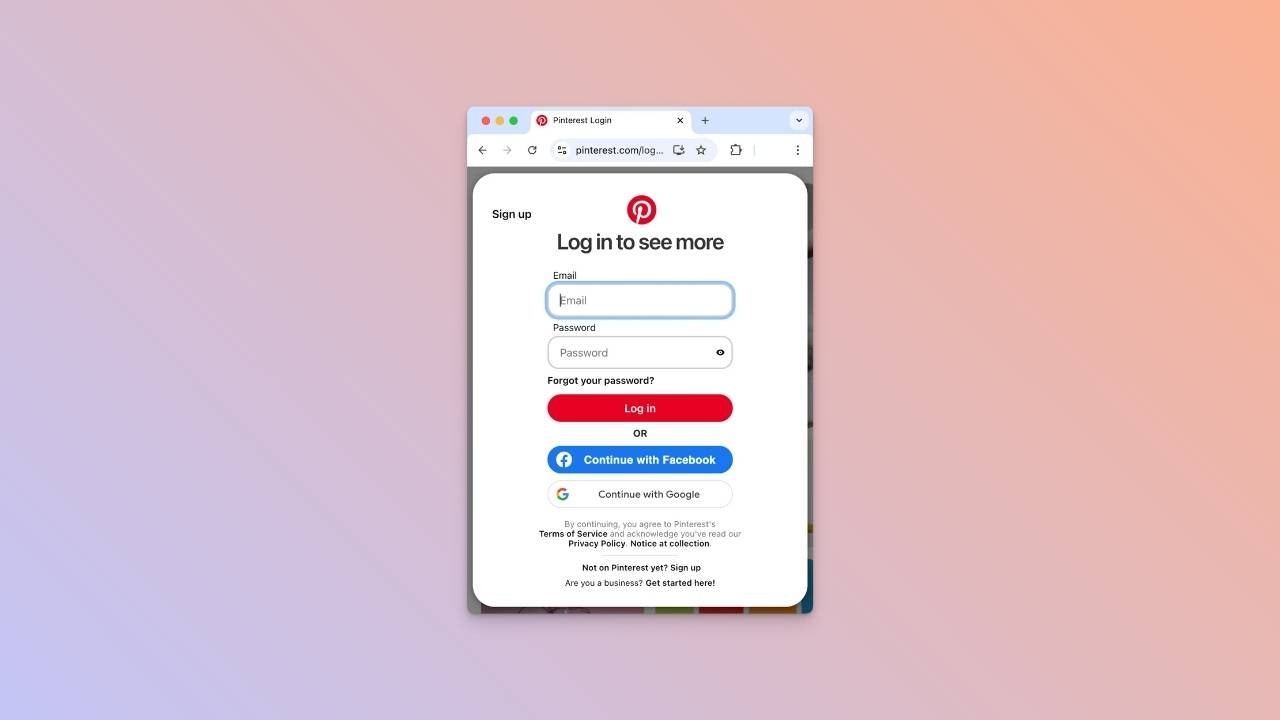
If you are not logged in yet, you’ll navigate to the Pinterest login page. Enter your credentials accordingly.\
If you are already logged in, please proceed to the next step.
### **First Time Pinterest Login**
If you are not logged in yet, you’ll navigate to the Pinterest login page. Enter your credentials accordingly.\
If you are already logged in, please proceed to the next step.
 ### **Authorize App**
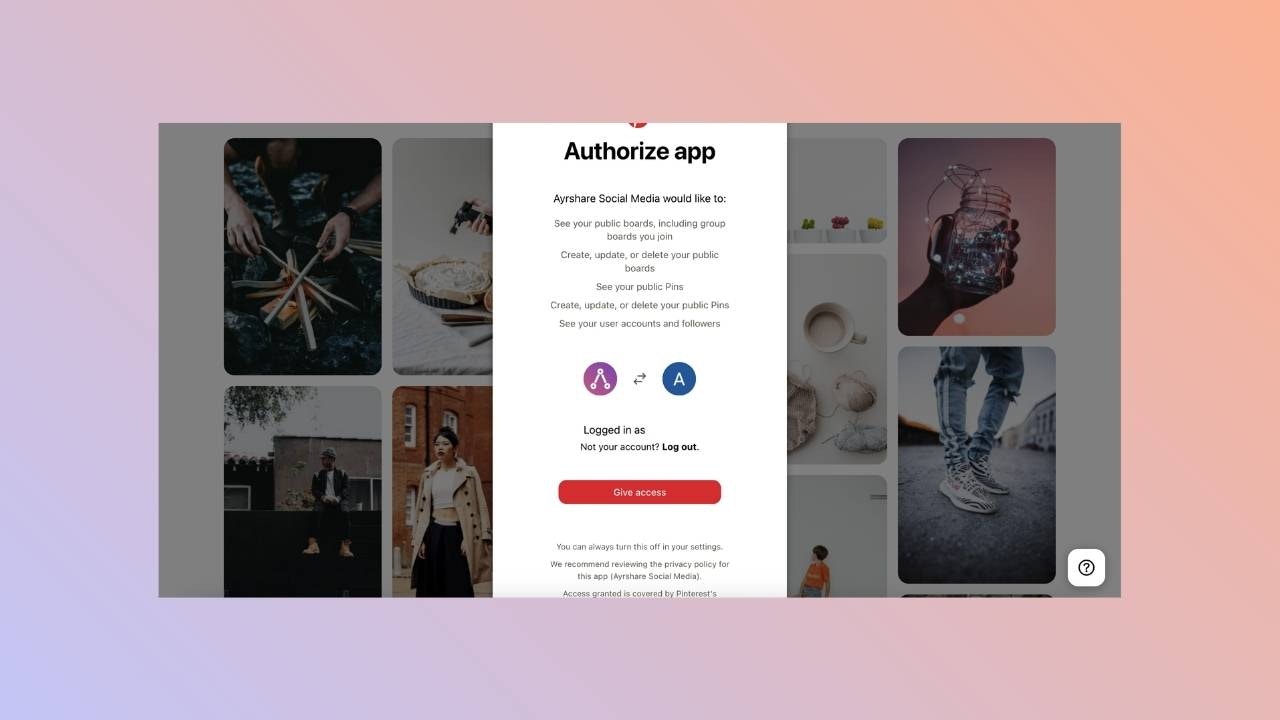
If already logged in, click **Give access** on the Authorize app page.
### **Authorize App**
If already logged in, click **Give access** on the Authorize app page.
 ### **Choose a Pinterest Board**
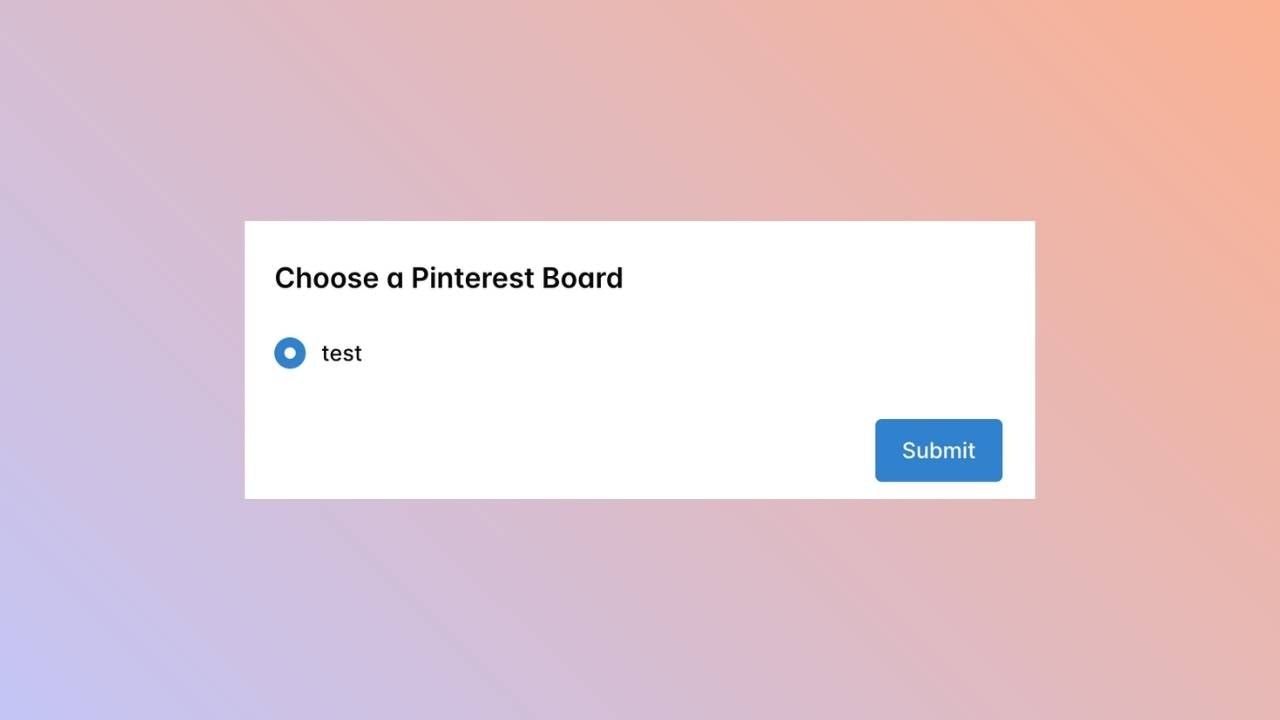
Once back at the Ayrshare dashboard, choose the Pinterest board to link.
### **Choose a Pinterest Board**
Once back at the Ayrshare dashboard, choose the Pinterest board to link.
 ### **Confirmation**
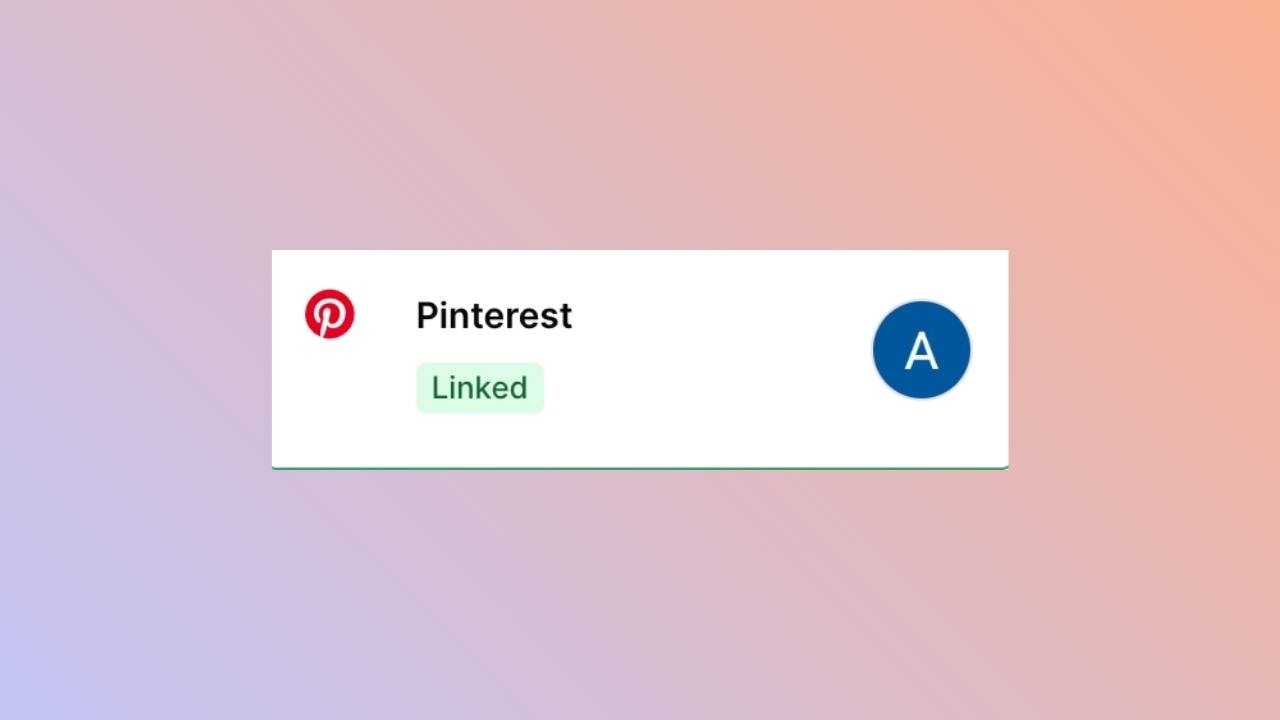
Your Social Accounts page will now be updated with your Pinterest account.
### **Confirmation**
Your Social Accounts page will now be updated with your Pinterest account.
 ## You're All Set!
You’ve successfully linked your Pinterest board to our platform! \
You can now **post or schedule media** directly through our dashboard with ease.\
Need more help? Feel free to reach out to our support team anytime.
## You're All Set!
You’ve successfully linked your Pinterest board to our platform! \
You can now **post or schedule media** directly through our dashboard with ease.\
Need more help? Feel free to reach out to our support team anytime.