> ## Documentation Index
> Fetch the complete documentation index at: https://helpdesk.quso.ai/llms.txt
> Use this file to discover all available pages before exploring further.
# Add music to your clips
> Guide to add music to video clips on quso.ai
Want to make your clips more engaging? You can now **add background music** with ease! Choose from our built-in stock music library or upload your own audio files to create the perfect vibe.
## Step 1: Open the Music Menu
1. **Open the Editor**\
Head to the clip you want to edit and open it in the [Quso.ai](http://Quso.ai) editor.
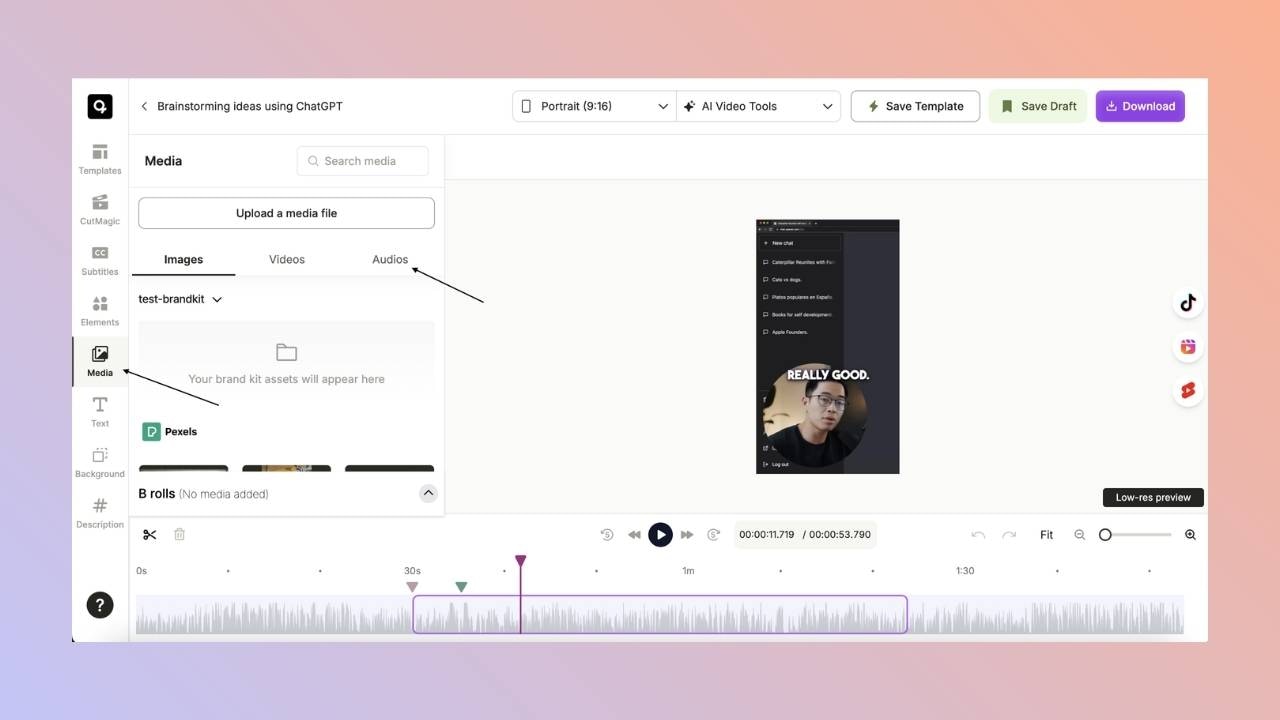
2. **Go to Media > Audios**\
In the left sidebar, click on **Media**, then select the **Audios** tab.
 ## Step 2: Add Your Music
### 🔁 Option 1: Upload Your Own Audio
* Click **“Upload a Media File”** in the left panel.
* A pop-up will appear — choose the audio file you want to upload.
* Once uploaded, your audio will be saved under your **Brandkit** for future use.
### 🎧 Option 2: Use the Stock Music Library
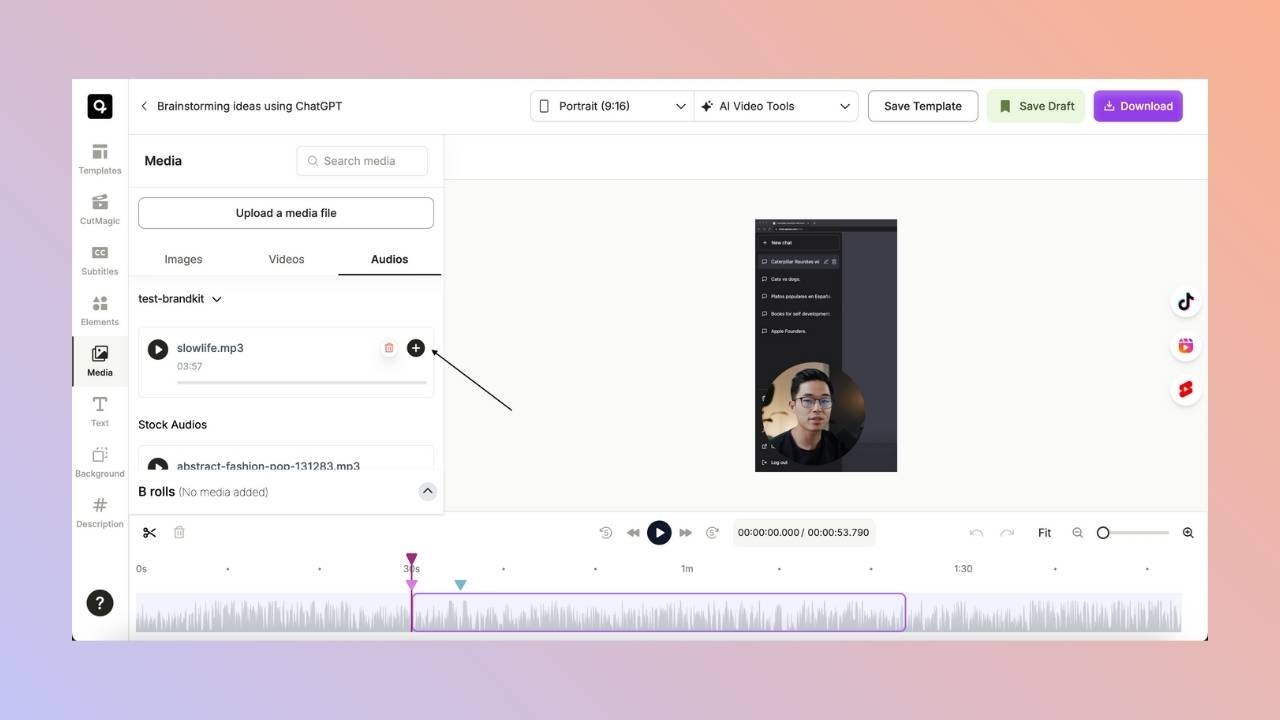
* Browse the **stock audio library** for a track that suits your video.
* Once you find the right audio, click the **“Add”** button.
## Step 2: Add Your Music
### 🔁 Option 1: Upload Your Own Audio
* Click **“Upload a Media File”** in the left panel.
* A pop-up will appear — choose the audio file you want to upload.
* Once uploaded, your audio will be saved under your **Brandkit** for future use.
### 🎧 Option 2: Use the Stock Music Library
* Browse the **stock audio library** for a track that suits your video.
* Once you find the right audio, click the **“Add”** button.
 ## Step 3: Customize Audio Timing
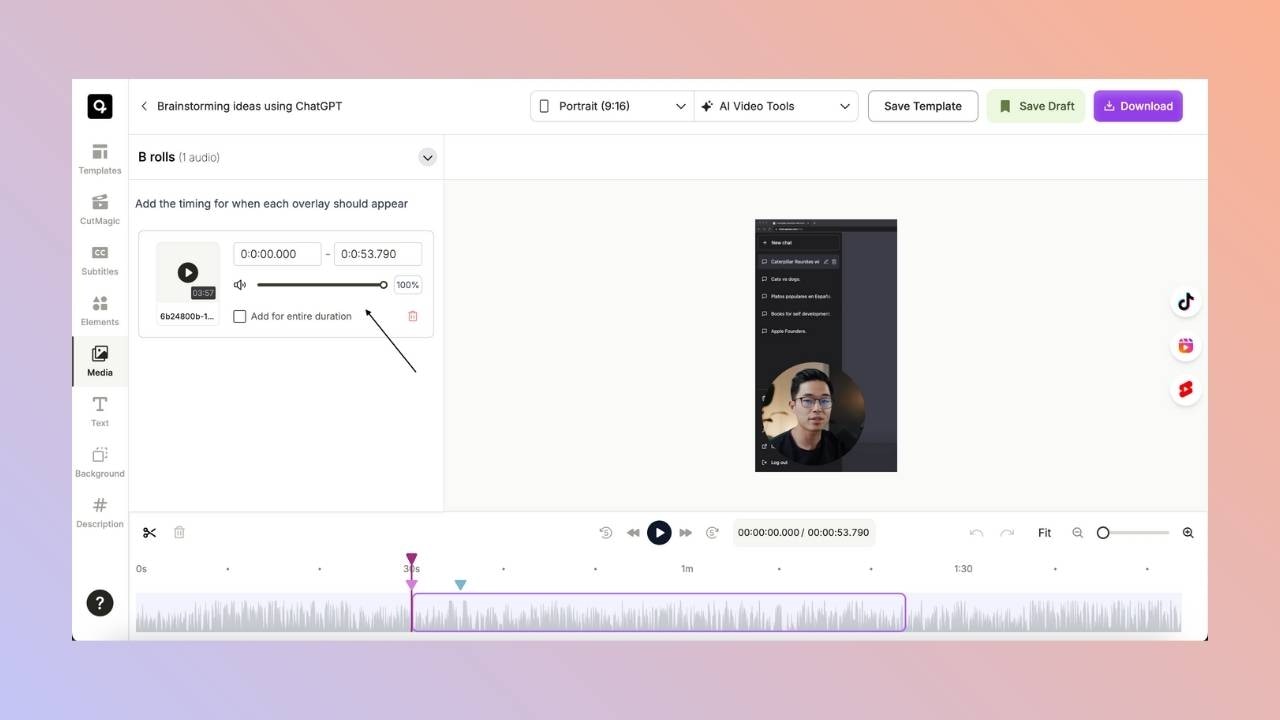
After adding music, it appears in the **B-Roll menu**. Here’s how to control when and how it plays:
* Use the **timestamp controls** to set a custom start time and duration.
* Want it to play through the entire clip? Click \*\*“Add for entire duration.”\*\*Step 4: Adjust the Volume
* Use the **volume slider** in the B-Roll menu to increase or decrease the background music volume for a balanced audio experience.
## Step 3: Customize Audio Timing
After adding music, it appears in the **B-Roll menu**. Here’s how to control when and how it plays:
* Use the **timestamp controls** to set a custom start time and duration.
* Want it to play through the entire clip? Click \*\*“Add for entire duration.”\*\*Step 4: Adjust the Volume
* Use the **volume slider** in the B-Roll menu to increase or decrease the background music volume for a balanced audio experience.
 ## Step 5: Remove or Replace Music (Optional)
* To delete an audio track, click the **trash icon** next to it in the B-Roll menu.
## ✅ Final Steps: Preview and Save
* Click **Preview** to check if the audio feels right.
* Adjust volume or timing as needed.
* Once happy, click **Save** or **Schedule** your clip. That’s it!
***
### Need Help?
If you run into any issues or have questions, our support team is just a message away.
## Step 5: Remove or Replace Music (Optional)
* To delete an audio track, click the **trash icon** next to it in the B-Roll menu.
## ✅ Final Steps: Preview and Save
* Click **Preview** to check if the audio feels right.
* Adjust volume or timing as needed.
* Once happy, click **Save** or **Schedule** your clip. That’s it!
***
### Need Help?
If you run into any issues or have questions, our support team is just a message away.