> ## Documentation Index
> Fetch the complete documentation index at: https://helpdesk.quso.ai/llms.txt
> Use this file to discover all available pages before exploring further.
# How to use Script to AI Video
# How to Create Your First Script-to-AI Video
The AI video feature is being discontinued and will no longer be available.
With [Quso.ai](http://Quso.ai)’s **Script to AI Video** tool, you can transform your ideas into high-quality videos in minutes. Here’s how to get started:
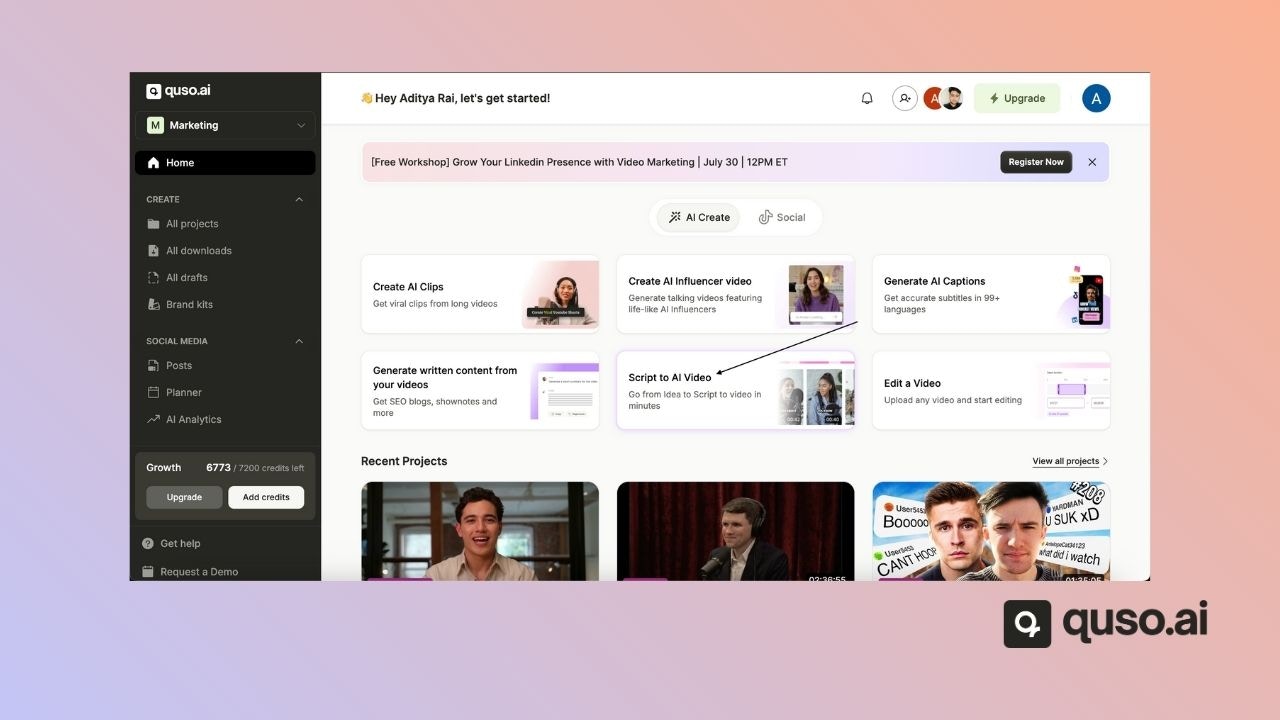
### ✅ Step 1: Open the Script to AI Video Tool
From the [**Quso.ai**](http://Quso.ai) Home Page, click on **“Script to AI Video.”**\
This will open the workspace where you can start building your video project.
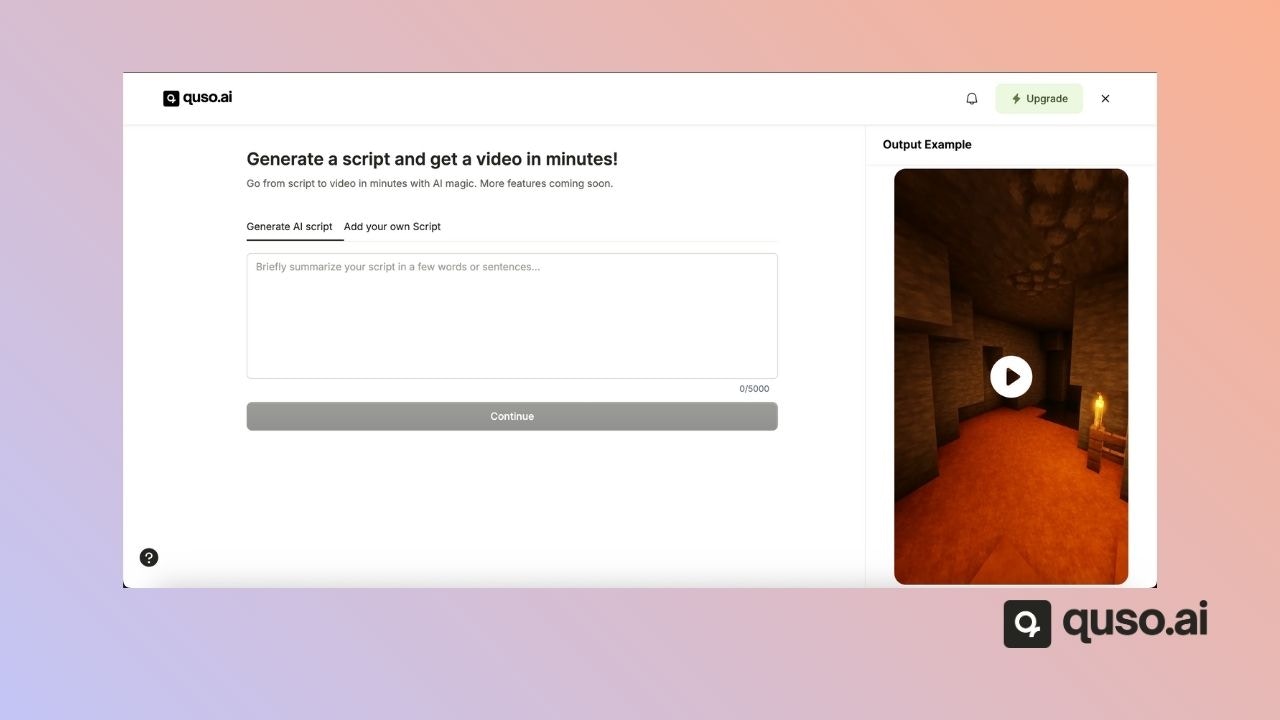
 ### 🧠 Step 2: Add or Generate a Script
You can either:
* **Write and paste your own script** into the Add your own Script menu
* Or enter a prompt to let AI create one for you based on your topic
Once your script is ready, make any edits needed to match your tone and messaging. Then, click **“Continue”** to move on and generate the script.
### 🧠 Step 2: Add or Generate a Script
You can either:
* **Write and paste your own script** into the Add your own Script menu
* Or enter a prompt to let AI create one for you based on your topic
Once your script is ready, make any edits needed to match your tone and messaging. Then, click **“Continue”** to move on and generate the script.
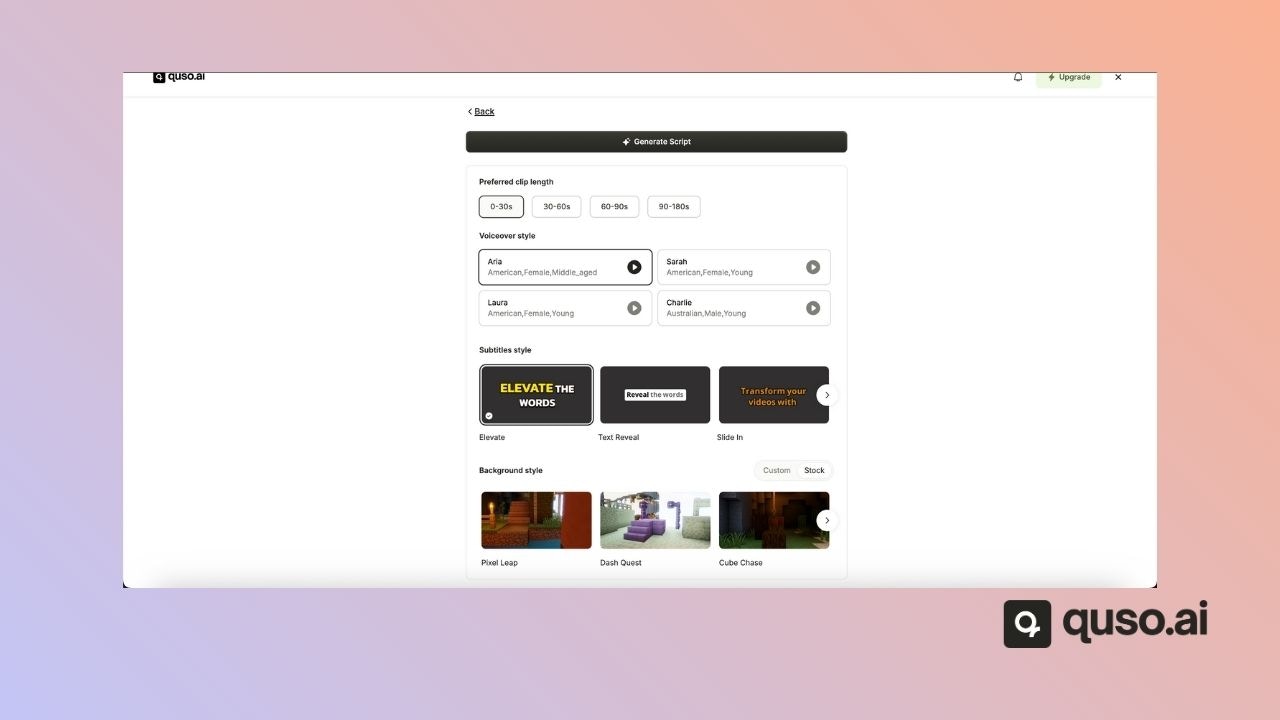
 ### 🎨 Step 3: Customize Your Video
Now it's time to tailor your video’s look and feel. Set the following preferences:
* **🎬 Video Length** – Choose the duration that fits your content goals
* **🌐 Voiceover Language** – Select from multiple language options
* **💬 Subtitles Style** – Select the style of your captions for accessibility and engagement
* **🖼️ Background Visuals** – Choose a default or **upload your own background video or image** to personalize the look
### 🎨 Step 3: Customize Your Video
Now it's time to tailor your video’s look and feel. Set the following preferences:
* **🎬 Video Length** – Choose the duration that fits your content goals
* **🌐 Voiceover Language** – Select from multiple language options
* **💬 Subtitles Style** – Select the style of your captions for accessibility and engagement
* **🖼️ Background Visuals** – Choose a default or **upload your own background video or image** to personalize the look
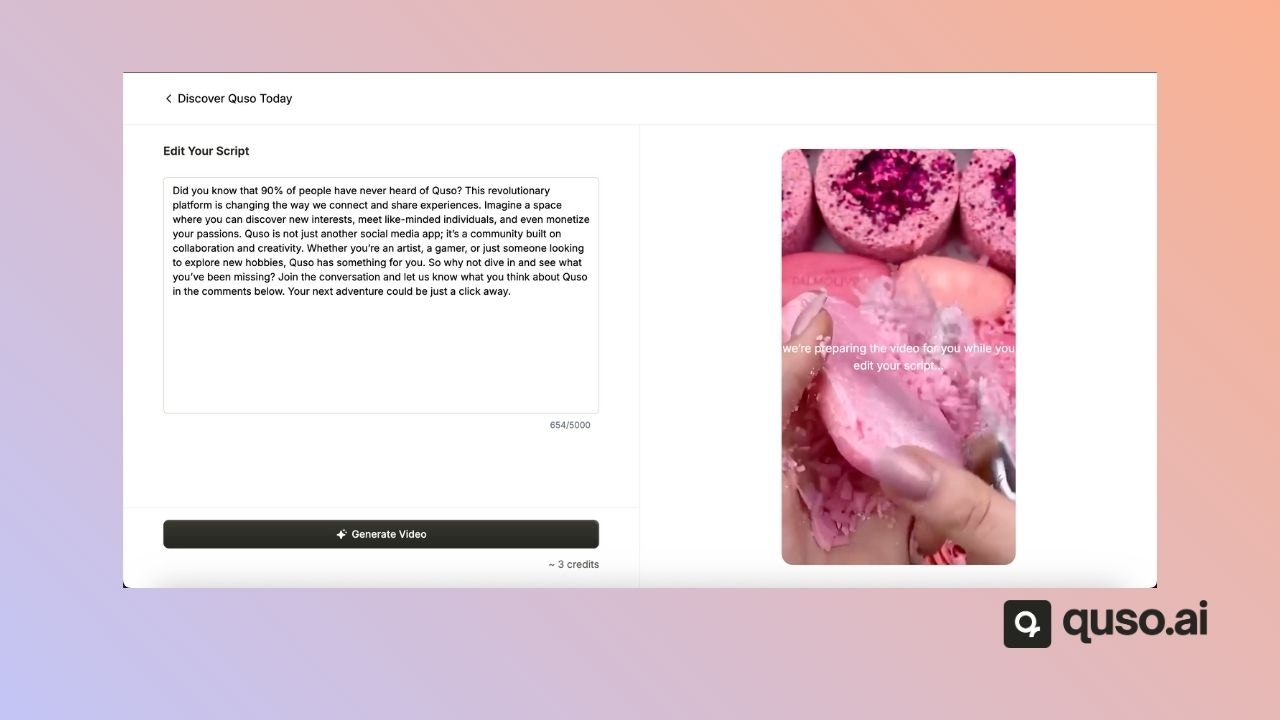
 ### Step 4: Generate & Download
Once everything looks good:
* Click **“Generate Video”**
* [Quso.ai](http://Quso.ai) will process your script and settings to produce the video.
### Step 4: Generate & Download
Once everything looks good:
* Click **“Generate Video”**
* [Quso.ai](http://Quso.ai) will process your script and settings to produce the video.
 In just a few minutes, your final video will be ready to **preview, download, or schedule** for publishing across your preferred platforms.
## 🎉 That’s it!
You’ve created a professional-quality video using just a script and a few clicks. This tool is ideal for repurposing blog posts, announcements, product explainers, and more—without the editing hassle.
Need help? Contact [**support@quso.ai**](mailto:support@quso.ai) — we’re here to assist!
In just a few minutes, your final video will be ready to **preview, download, or schedule** for publishing across your preferred platforms.
## 🎉 That’s it!
You’ve created a professional-quality video using just a script and a few clicks. This tool is ideal for repurposing blog posts, announcements, product explainers, and more—without the editing hassle.
Need help? Contact [**support@quso.ai**](mailto:support@quso.ai) — we’re here to assist!