> ## Documentation Index
> Fetch the complete documentation index at: https://helpdesk.quso.ai/llms.txt
> Use this file to discover all available pages before exploring further.
# Storage Management
# Understanding Storage Policy
### Storage Allocation by Plan Type
Our platform offers different storage allocations for your videos based on your subscription plan:
* **Essential Plan**: 25 GB
* **Lite:** 10 GB
* **Growth Plan**: 75 GB
**Note: On the free plan, data is retained on your account for up to 7 days, while any kind of data is archived.**
## Storage Categories
Your storage is divided into three main categories:
1. **Projects**
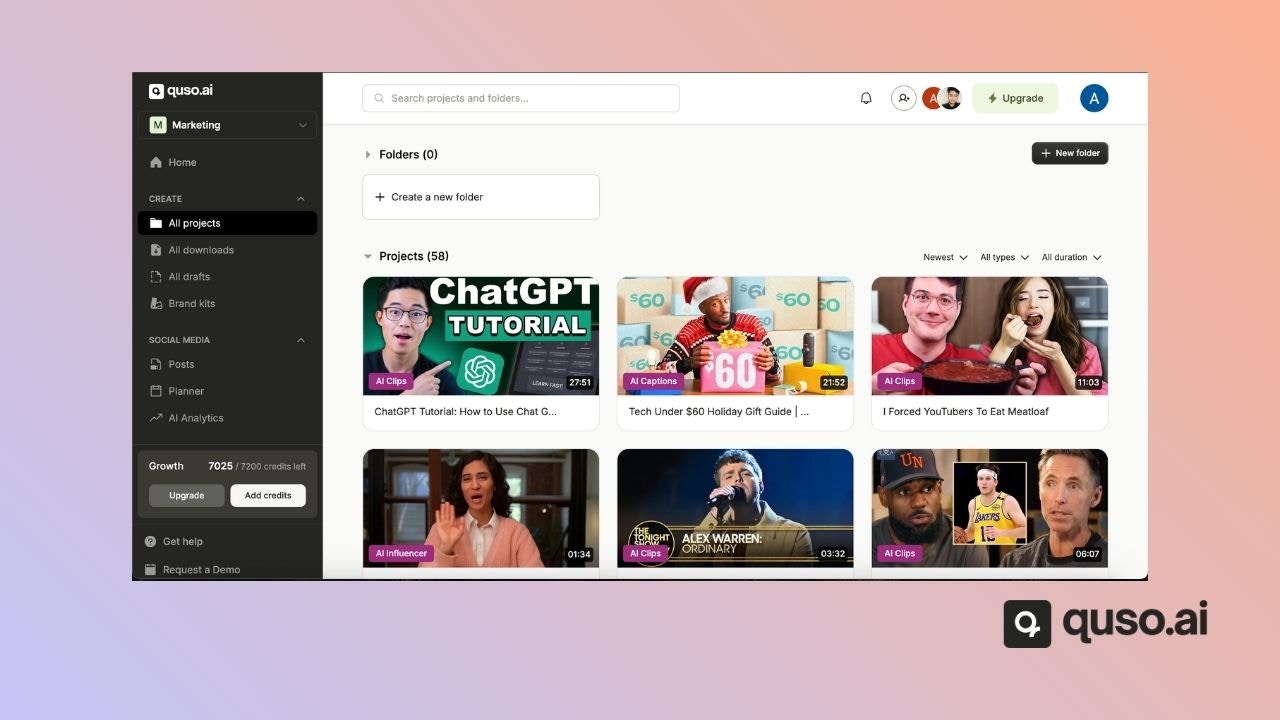 \
**Important:** Deleting a project will remove:
* Uploaded Video and all its content.
2. **Downloads**
\
**Important:** Deleting a project will remove:
* Uploaded Video and all its content.
2. **Downloads**
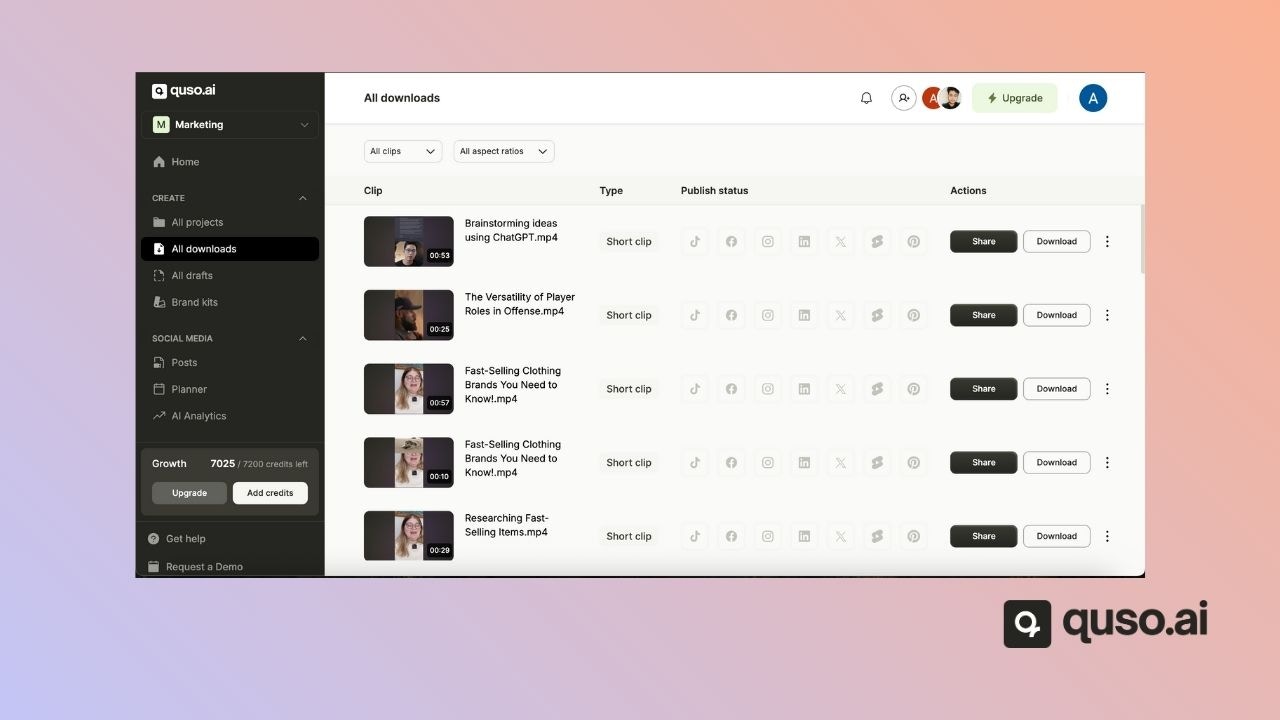 \
**Important:** Deleting a download will also:
* Remove all associated social media posts.
3. Brand Assets
\
**Important:** Deleting a download will also:
* Remove all associated social media posts.
3. Brand Assets
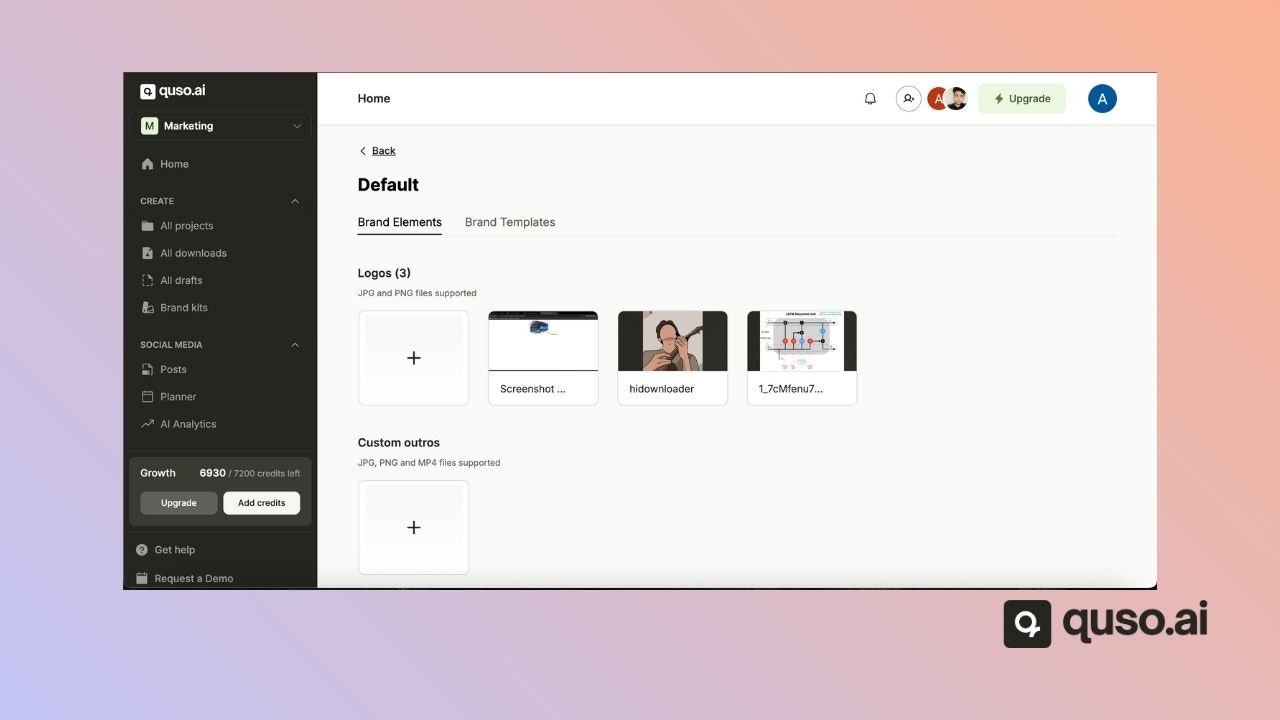 \
**Includes:**
* Logos
* Outros
* Fonts
* Images
* Videos
* Audio files
* Background images
**Important:** Deleting a brand asset will:
* Delete brand assets from editor/downloaded drafts.
* Remove deleted assets from brand templates
## Storage Management
### **Storage Usage Tracking**
\
**Includes:**
* Logos
* Outros
* Fonts
* Images
* Videos
* Audio files
* Background images
**Important:** Deleting a brand asset will:
* Delete brand assets from editor/downloaded drafts.
* Remove deleted assets from brand templates
## Storage Management
### **Storage Usage Tracking**
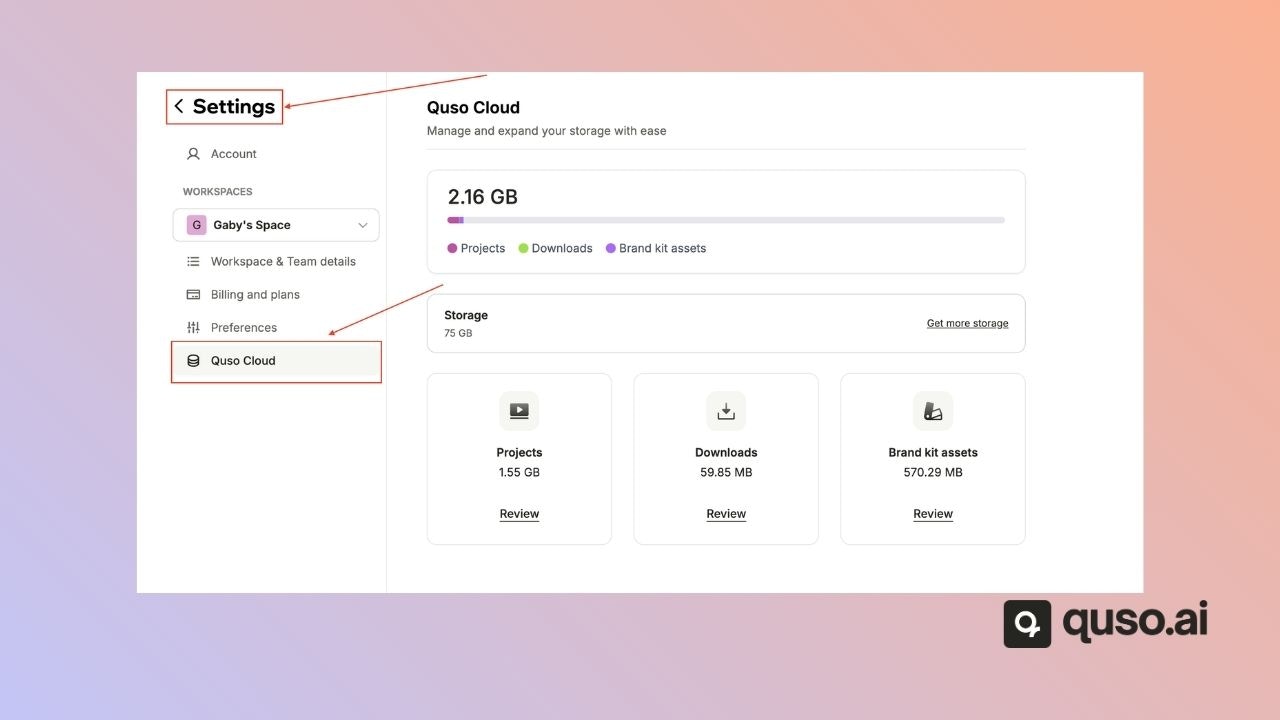 A dedicated storage tab will be available in the Settings section
You can view:
* Total available storage
* Used storage
* Breakdown of storage usage by category
### **Storage Alerts**
When your storage reaches 90% capacity, you'll see:
* A banner on the Home Screen
### **When You Exceed Storage Limits**
* New project uploads will be locked
* All subsequent imports will be disabled
* You will receive an email notification when a project is locked
### **Resolving Storage Issues**
You have two options to unlock your projects:
1. **Free Up Space**
* Review your storage under the Settings page (Quso Cloud)
* Delete unused items to reclaim storage space
2. **Purchase Additional Storage** Storage Add-on Options:
* 50 GB: \$2/month
* 100 GB: \$4/month
* 500 GB: \$15/month
* 1 TB: \$30/month
* 2 TB: \$60/month
* 5 TB: \$150/month
## Managing Your Storage
You can individually delete items from:
* Projects
* Downloads
* Brand Assets
This helps you reclaim storage space as needed.
## Best Practices
* Regularly review and clean up unused projects, downloads, and assets
* Consider upgrading your plan if you frequently approach storage limits
* Plan your storage usage strategically.
A dedicated storage tab will be available in the Settings section
You can view:
* Total available storage
* Used storage
* Breakdown of storage usage by category
### **Storage Alerts**
When your storage reaches 90% capacity, you'll see:
* A banner on the Home Screen
### **When You Exceed Storage Limits**
* New project uploads will be locked
* All subsequent imports will be disabled
* You will receive an email notification when a project is locked
### **Resolving Storage Issues**
You have two options to unlock your projects:
1. **Free Up Space**
* Review your storage under the Settings page (Quso Cloud)
* Delete unused items to reclaim storage space
2. **Purchase Additional Storage** Storage Add-on Options:
* 50 GB: \$2/month
* 100 GB: \$4/month
* 500 GB: \$15/month
* 1 TB: \$30/month
* 2 TB: \$60/month
* 5 TB: \$150/month
## Managing Your Storage
You can individually delete items from:
* Projects
* Downloads
* Brand Assets
This helps you reclaim storage space as needed.
## Best Practices
* Regularly review and clean up unused projects, downloads, and assets
* Consider upgrading your plan if you frequently approach storage limits
* Plan your storage usage strategically.