> ## Documentation Index
> Fetch the complete documentation index at: https://helpdesk.quso.ai/llms.txt
> Use this file to discover all available pages before exploring further.
# Video Import Source
**Quso.ai** offers multiple ways to import videos into your workspace, making it easy to work with content from your computer or preferred cloud storage services. Below is a complete guide to the supported import methods, file formats, and upload limits.
***
## Supported Video Import Sources
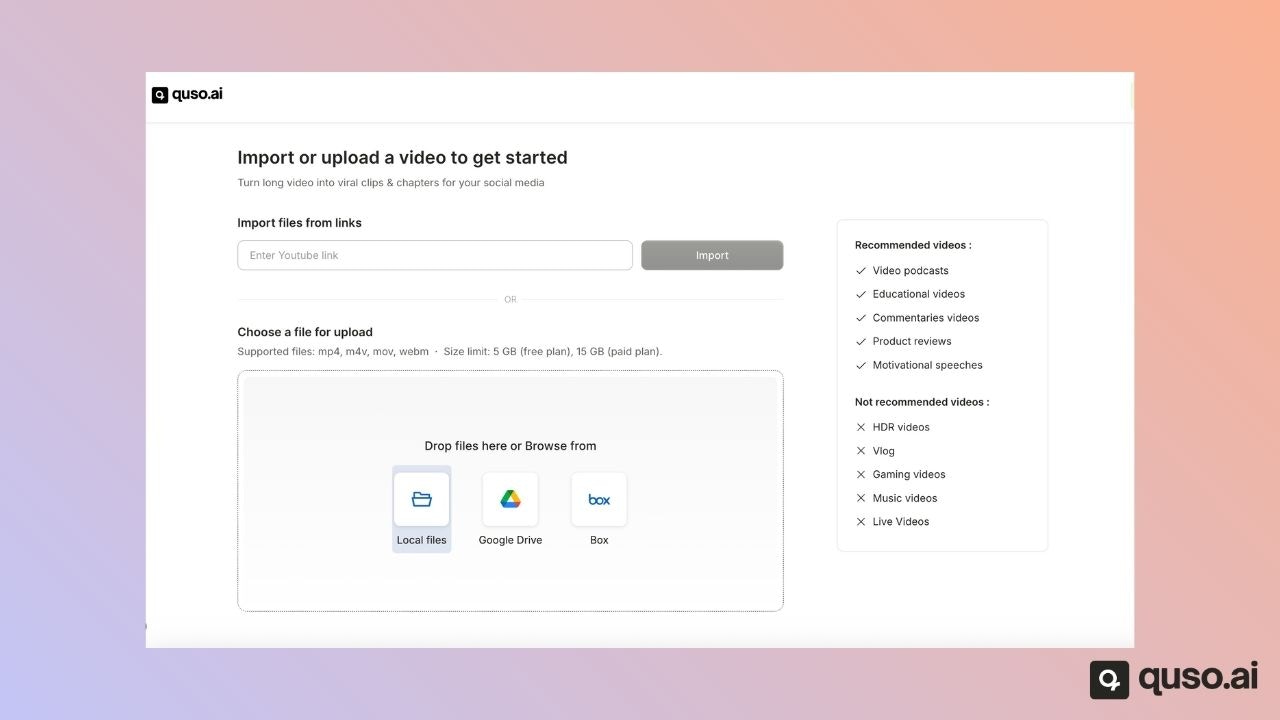
You can import videos using any of the following methods:
* **YouTube** (video must be *Public* or *Unlisted*)
* **Google Drive**
* **Box**
* **Local files** from your computer
* **Zoom** (*Coming soon*)
 ***
## Supported File Formats
[Quso.ai](http://Quso.ai) currently supports the following video formats:
* **mp4**
* **mkv**
* **mov**
* **webm**
Uploads will fail if the file format is not one of the above.
***
## File Size Limits
The maximum supported upload size depends on your subscription tier:
* **Free plans:** up to **5 GB** per file
* **Paid plans:** up to **15 GB** per file
If your file exceeds these limits, you will need to compress or trim it before uploading.
***
## Types of Upload Methods
### 1. Cloud Uploads
You can import videos directly from cloud services:
* **Google Drive**
* **Box**
To use these sources, you’ll need to:
* Sign in to the respective cloud platform
* Grant **Quso.ai** the necessary permissions to access your files
Once connected, you can browse and import videos instantly.
***
## Supported File Formats
[Quso.ai](http://Quso.ai) currently supports the following video formats:
* **mp4**
* **mkv**
* **mov**
* **webm**
Uploads will fail if the file format is not one of the above.
***
## File Size Limits
The maximum supported upload size depends on your subscription tier:
* **Free plans:** up to **5 GB** per file
* **Paid plans:** up to **15 GB** per file
If your file exceeds these limits, you will need to compress or trim it before uploading.
***
## Types of Upload Methods
### 1. Cloud Uploads
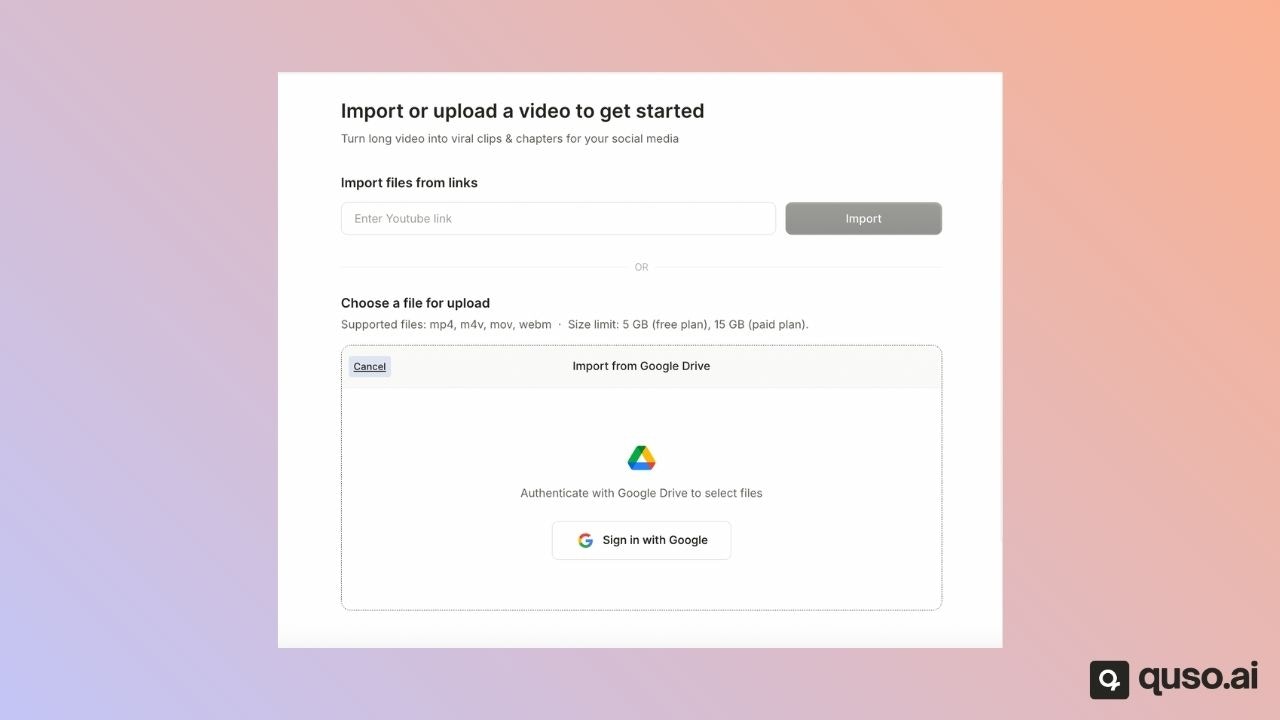
You can import videos directly from cloud services:
* **Google Drive**
* **Box**
To use these sources, you’ll need to:
* Sign in to the respective cloud platform
* Grant **Quso.ai** the necessary permissions to access your files
Once connected, you can browse and import videos instantly.
 ***
### 2. Link Uploads (YouTube)
You can paste a **YouTube link** directly into the uploader.
Requirements:
* The YouTube video must be **Public** or **Unlisted**
* Private videos are not supported
The video will automatically be imported into your project once processed.
***
### 3. Direct Uploads (Local Files)
You can upload video files directly from your computer.
Simply select **Local Files** and choose the video you wish to import.\
This method supports all valid file formats and respects your plan’s size limits.
***
If you need help troubleshooting upload issues or verifying supported formats, feel free to reach out to our support team—we’re here to help!
***
### 2. Link Uploads (YouTube)
You can paste a **YouTube link** directly into the uploader.
Requirements:
* The YouTube video must be **Public** or **Unlisted**
* Private videos are not supported
The video will automatically be imported into your project once processed.
***
### 3. Direct Uploads (Local Files)
You can upload video files directly from your computer.
Simply select **Local Files** and choose the video you wish to import.\
This method supports all valid file formats and respects your plan’s size limits.
***
If you need help troubleshooting upload issues or verifying supported formats, feel free to reach out to our support team—we’re here to help!