> ## Documentation Index
> Fetch the complete documentation index at: https://helpdesk.quso.ai/llms.txt
> Use this file to discover all available pages before exploring further.
# Understanding and Managing Social Sets
The **Social Sets** feature in **Quso.ai** helps you manage multiple social media accounts with ease. Each Social Set acts as a group of connected social accounts—one for each platform—allowing you to organize and publish content efficiently.
***
## 🧩 What is a Social Set?
When you first purchase a subscription, you are automatically allotted **one free Social Set**.\
Each Social Set lets you connect **one account per supported platform**.
For example, a single Social Set can include one Instagram account, one Facebook page, one LinkedIn account, and so on.
***
## 💼 Why Use Multiple Social Sets?
If you manage **multiple clients** or **different brands/pages** on various platforms, Social Sets make it easy to keep them separate and organized.\
Each additional Social Set acts as a unique workspace for another client or brand—perfect for agencies, social media managers, or creators handling multiple projects.
***
## ⚙️ Social Set Limits
* Every account starts with **1 free Social Set**.
* You can **purchase up to 5 Social Sets** in total.
* Each Social Set allows connection to **one account per platform**.
***
## 🛒 How to Purchase a New Social Set
Follow these simple steps to add another Social Set:
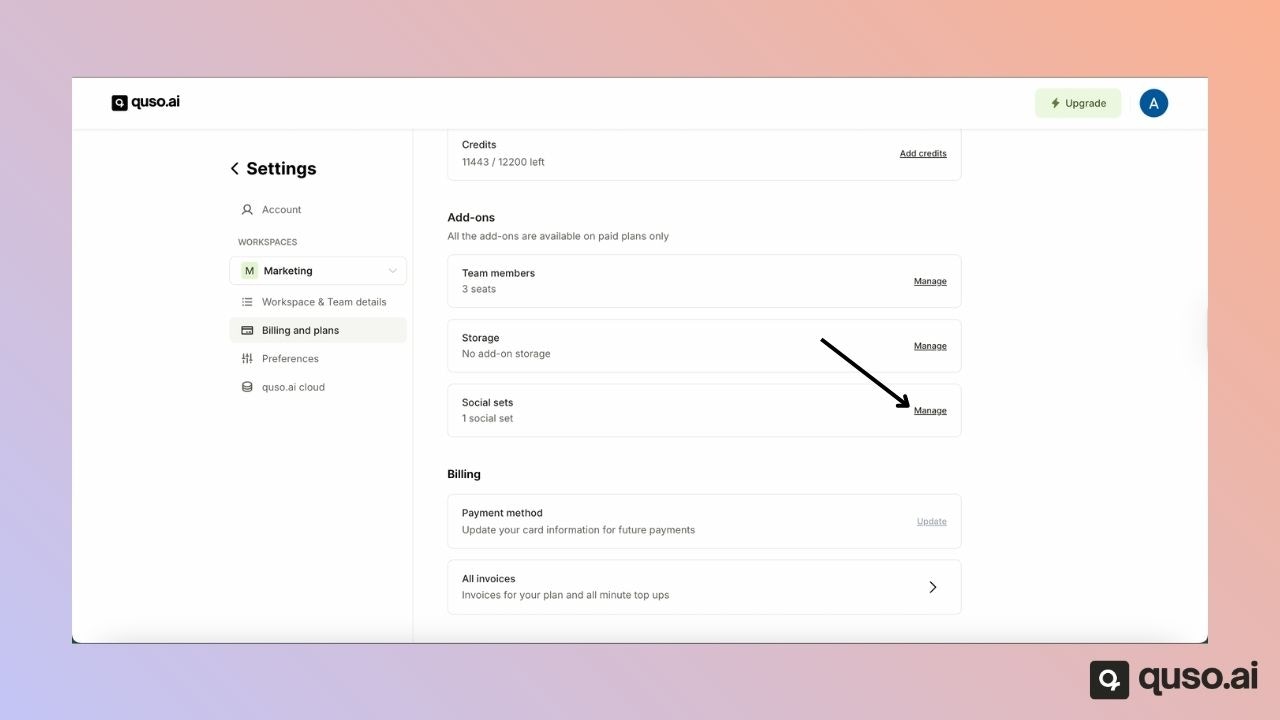
1. Go to the **Manage Social Sets** in the settings menu.
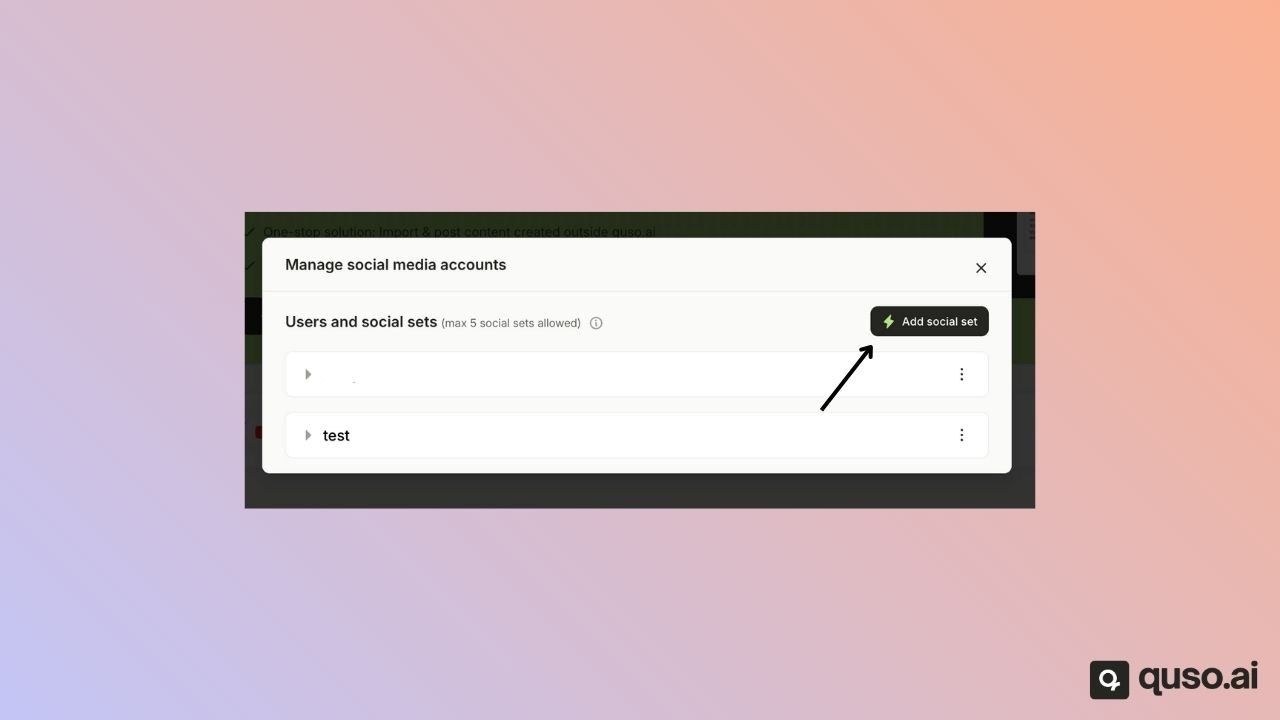
 2. Click on **Add Social Set**.
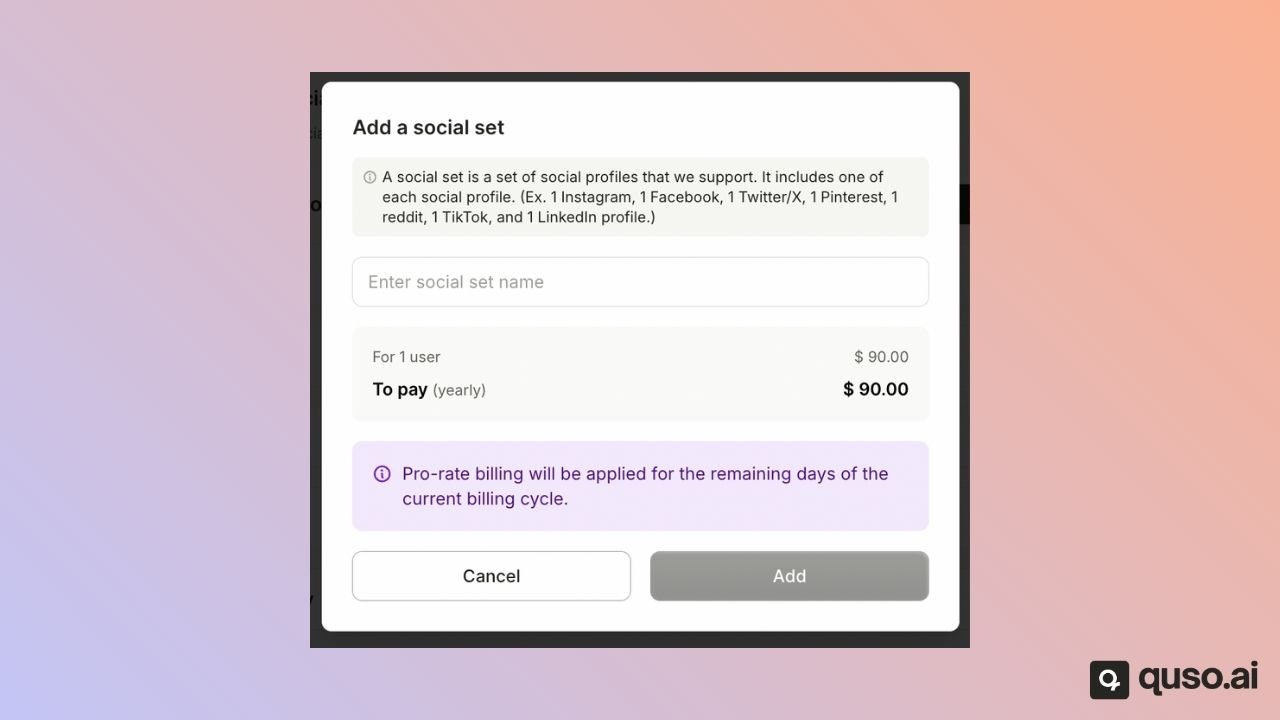
 3. Enter a name for the new Social Set (for example, a client or brand name).
4. Click **Add**.
3. Enter a name for the new Social Set (for example, a client or brand name).
4. Click **Add**.
 That’s it! You’ve successfully purchased and added a new Social Set. You can now connect one account from each supported social platform under it.
***
## ✅ Example Use Cases
* Manage separate client accounts (e.g., Client A’s social profiles vs. Client B’s).
* Group multiple brand pages you own under separate sets.
* Simplify scheduling, analytics, and content management for different audiences.
***
With **Social Sets**, [Quso.ai](http://Quso.ai) makes it easy to manage multiple social media identities—all in one place.
That’s it! You’ve successfully purchased and added a new Social Set. You can now connect one account from each supported social platform under it.
***
## ✅ Example Use Cases
* Manage separate client accounts (e.g., Client A’s social profiles vs. Client B’s).
* Group multiple brand pages you own under separate sets.
* Simplify scheduling, analytics, and content management for different audiences.
***
With **Social Sets**, [Quso.ai](http://Quso.ai) makes it easy to manage multiple social media identities—all in one place.