

How to Link a YouTube Channel
You can link a YouTube channel with our platform. When authorizing YouTube with Ayrshare, you will be redirected to Google to log in, authorize Ayrshare, and select a YouTube channel. Please be sure your Google account is permitted to manage the YouTube channel you want to connect and that the channel is public.Linking YouTube
Go to the Manage Accounts page
Open the manage accounts page from the social tab and click on the link button. This will open a new tab.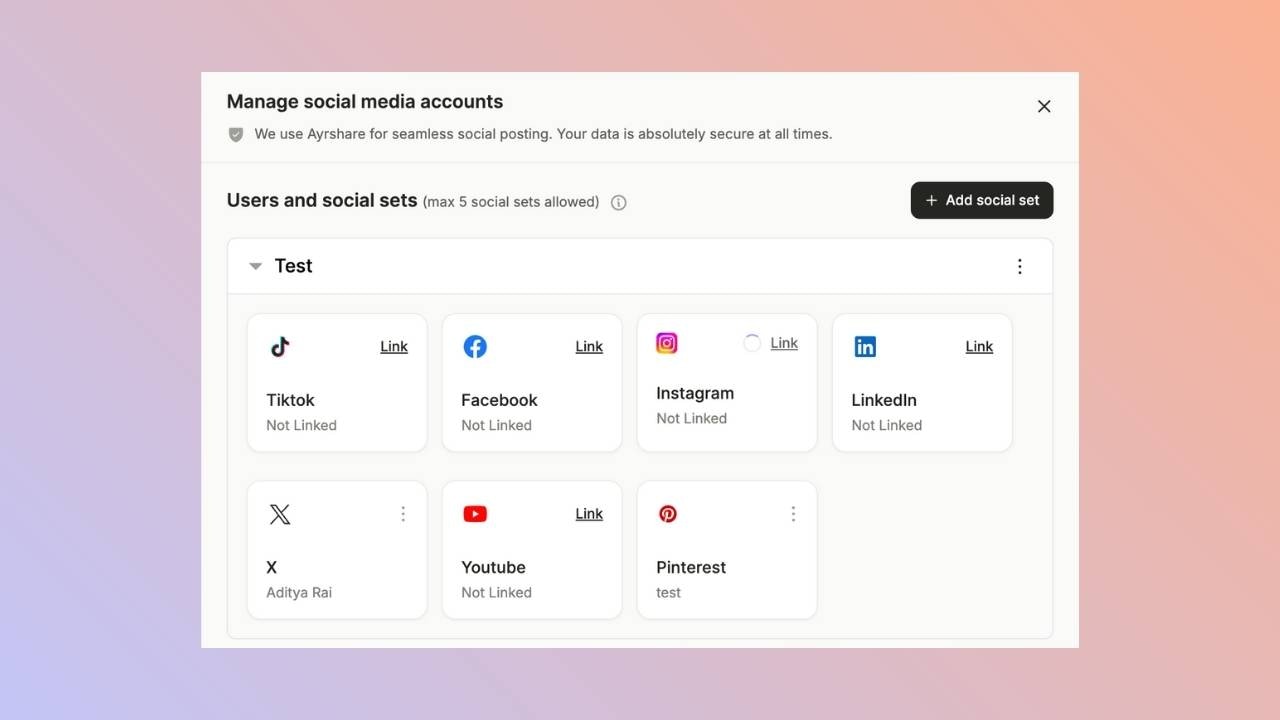
Click to Link YouTube
Click the YouTube icon on the Ayrshare Social Account linking page.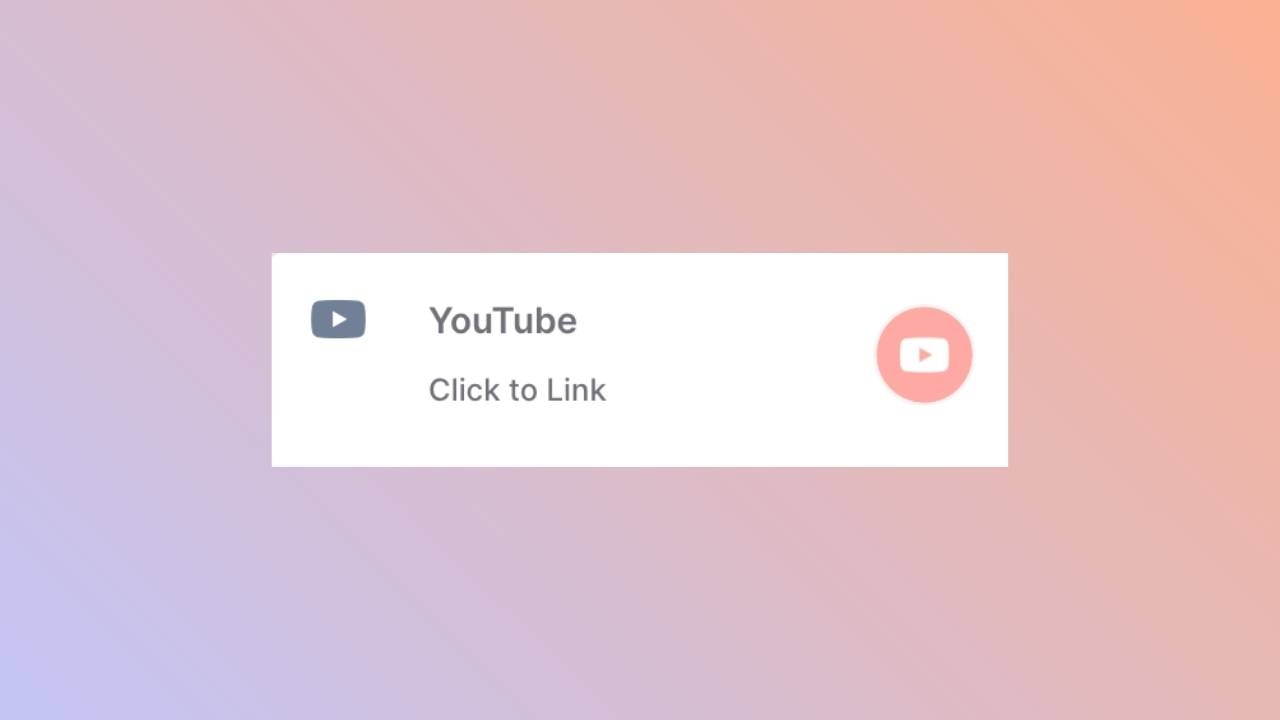
Google Login
The page will be redirected to either a Google login page or a list of currently logged in Google accounts.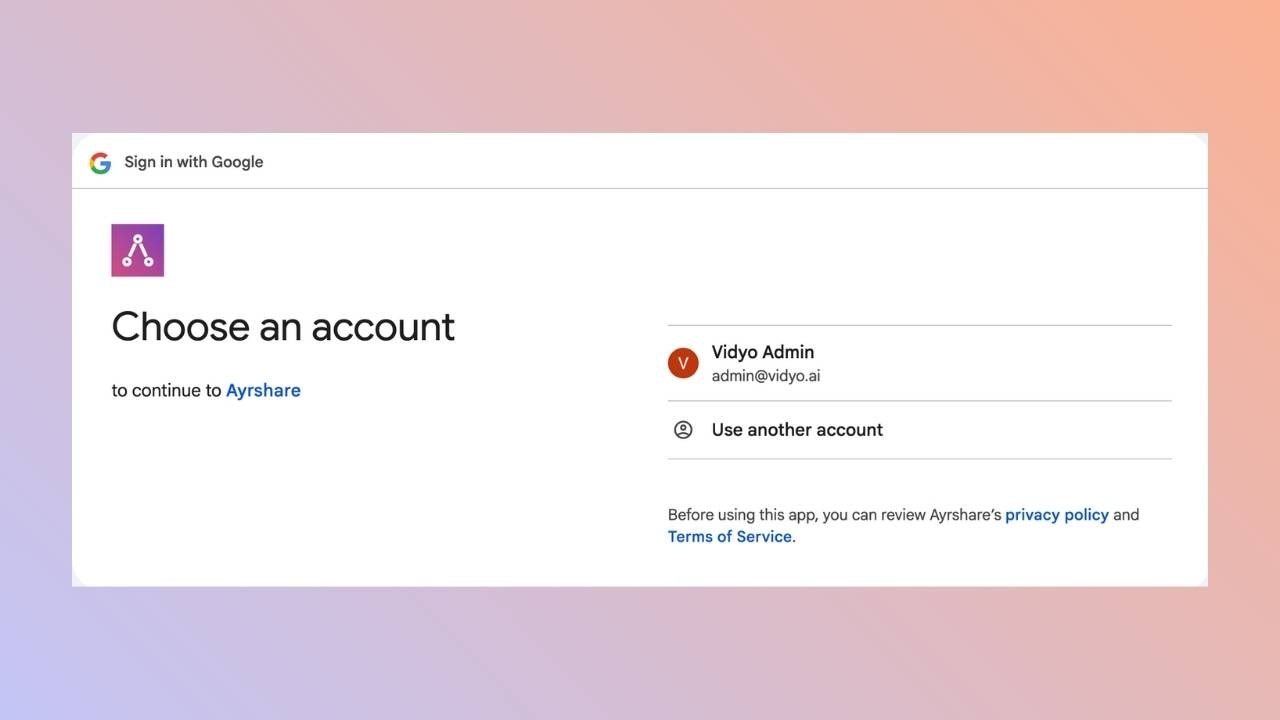
Choose a YouTube Channel
Select a Google account that is associated with the YouTube channel you want to connect.Select a YouTube Channel
Select the YouTube channel you want to connect.Authorize Access
You may then see one or two screens requesting permissions. Click Continue on each screen.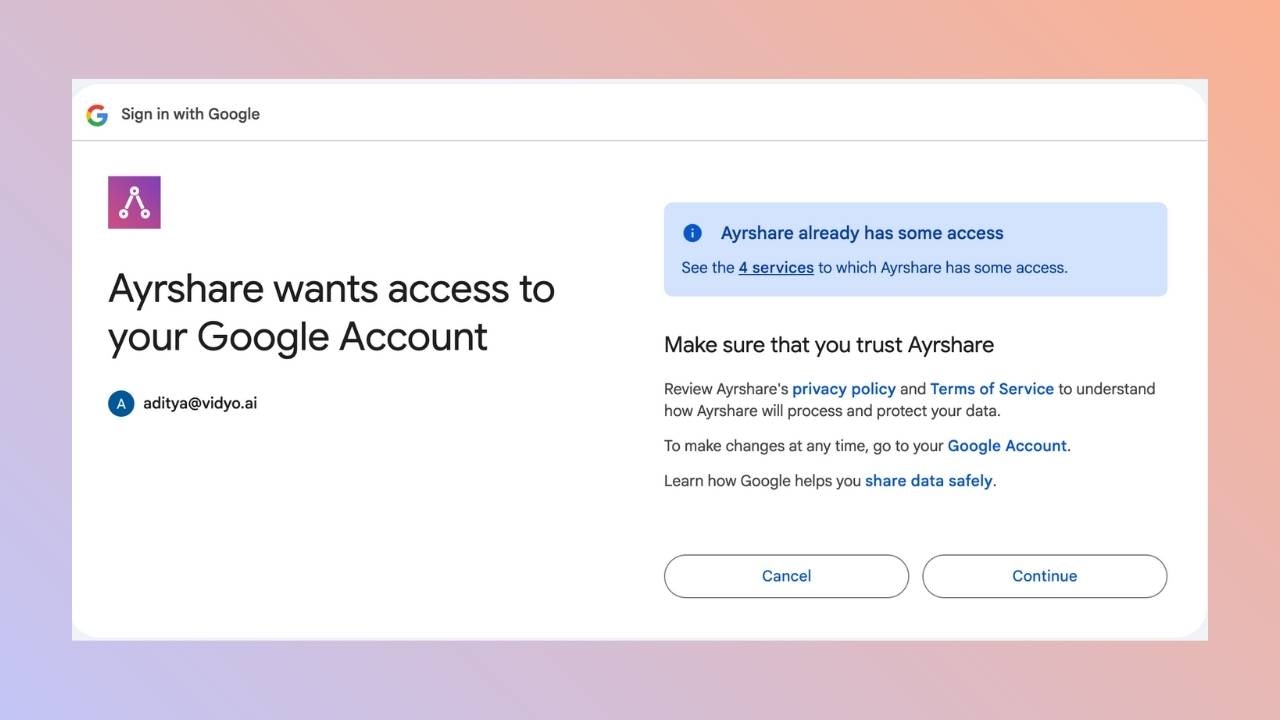
Confirmation
Your Social Accounts page will now be updated with your YouTube account.
You’re All Set!
You’ve successfully linked your YouTube channel to quso.ai!You can now post or schedule media directly through our dashboard with ease.\