

Getting Started
How do I start a new project?
How do I start a new project?
- Log in at app.quso.ai.
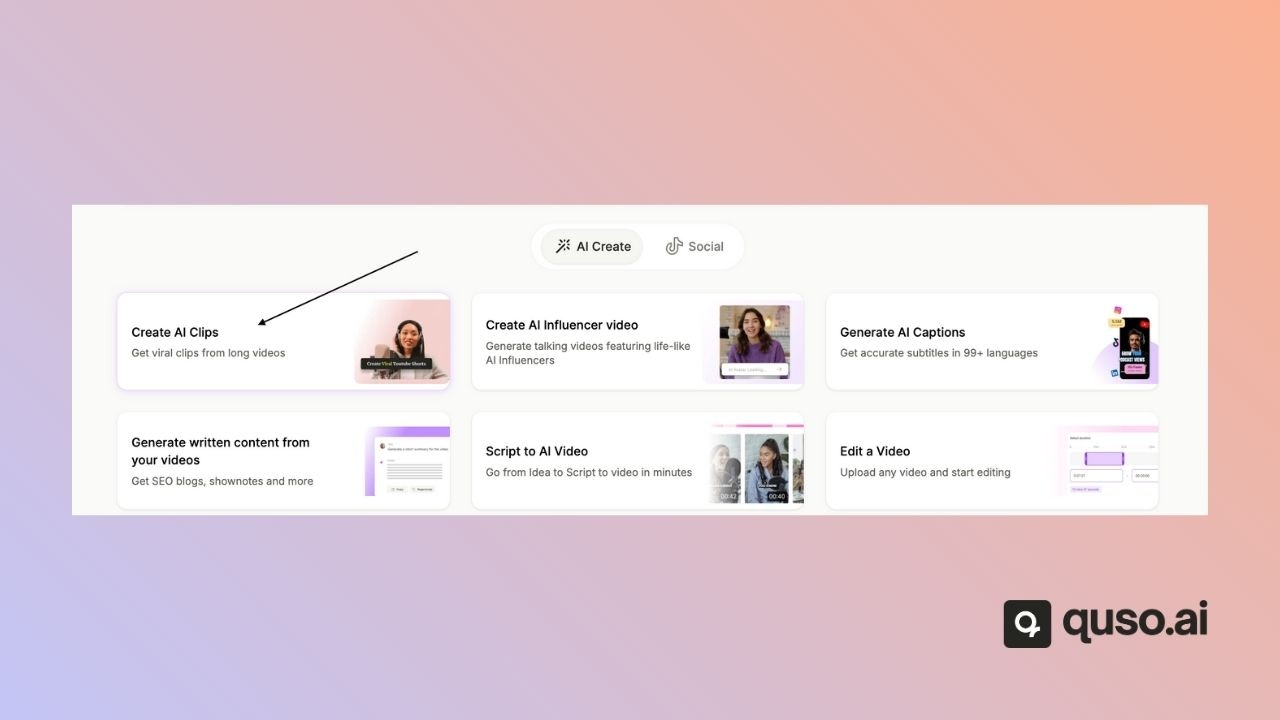
- On the home page, pick what you want to make:
- Long to shorts (AI Clips): short highlight clips from a long video.
- AI Captions: subtitles on a whole video.
- AI Writer: written content from a video or audio file.
- Upload a file or paste a link and follow the steps.
Where is my dashboard and the video editor?
Where is my dashboard and the video editor?
Which file formats can I upload, and how big can they be?
Which file formats can I upload, and how big can they be?
- Free plan: up to 5 GB per file
- Paid plans: up to 15 GB, or 25 GB for AI Clips
Which links can I import from?
Which links can I import from?
Can I use quso.ai on my phone?
Can I use quso.ai on my phone?
AI Video Creation & Editing
How do I make AI clips from a long video?
How do I make AI clips from a long video?
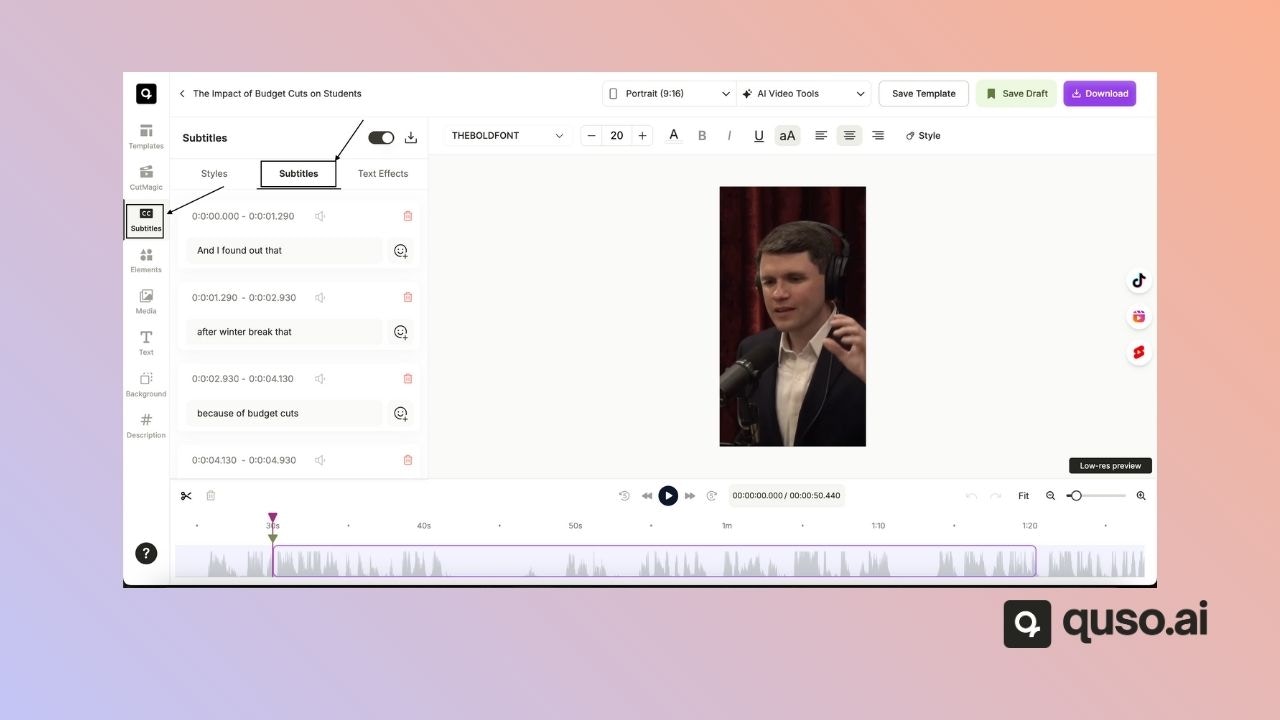
How do I add or edit subtitles and captions?
How do I add or edit subtitles and captions?
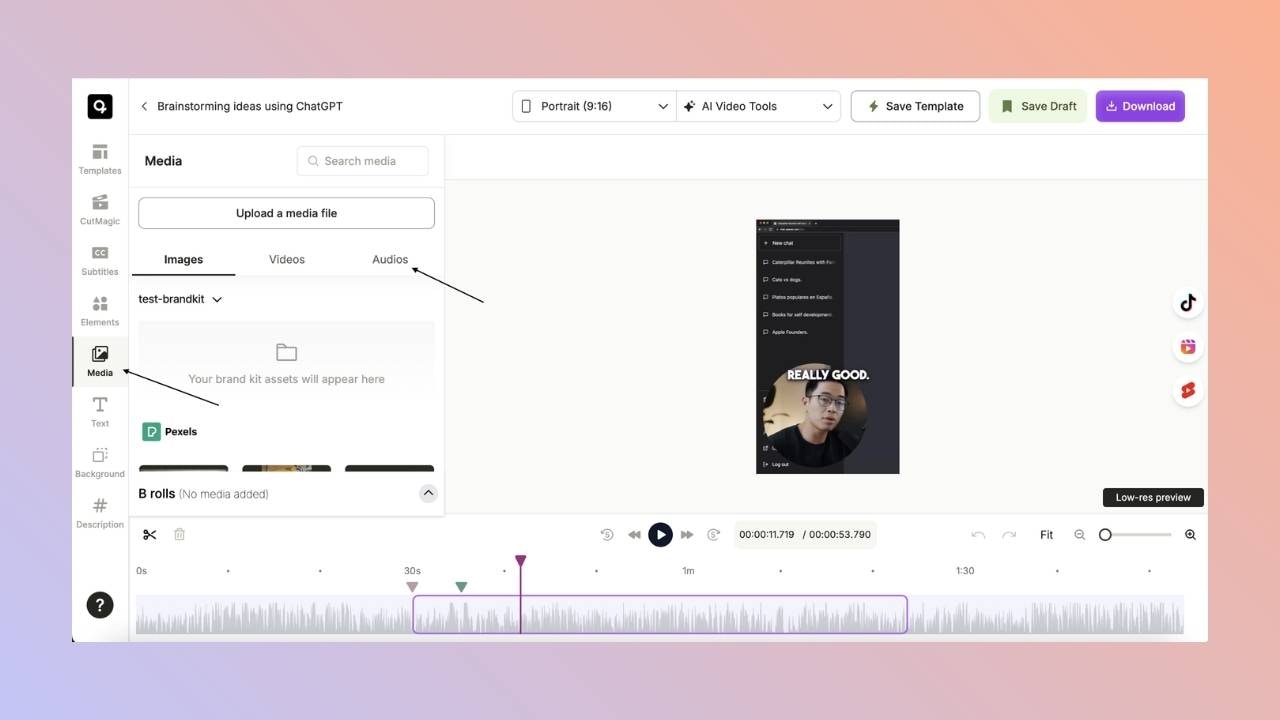
How do I add background music?
How do I add background music?
Can I rotate or flip a video?
Can I rotate or flip a video?
Can I change the playback speed of a clip?
Can I change the playback speed of a clip?
How do I save a custom template?
How do I save a custom template?

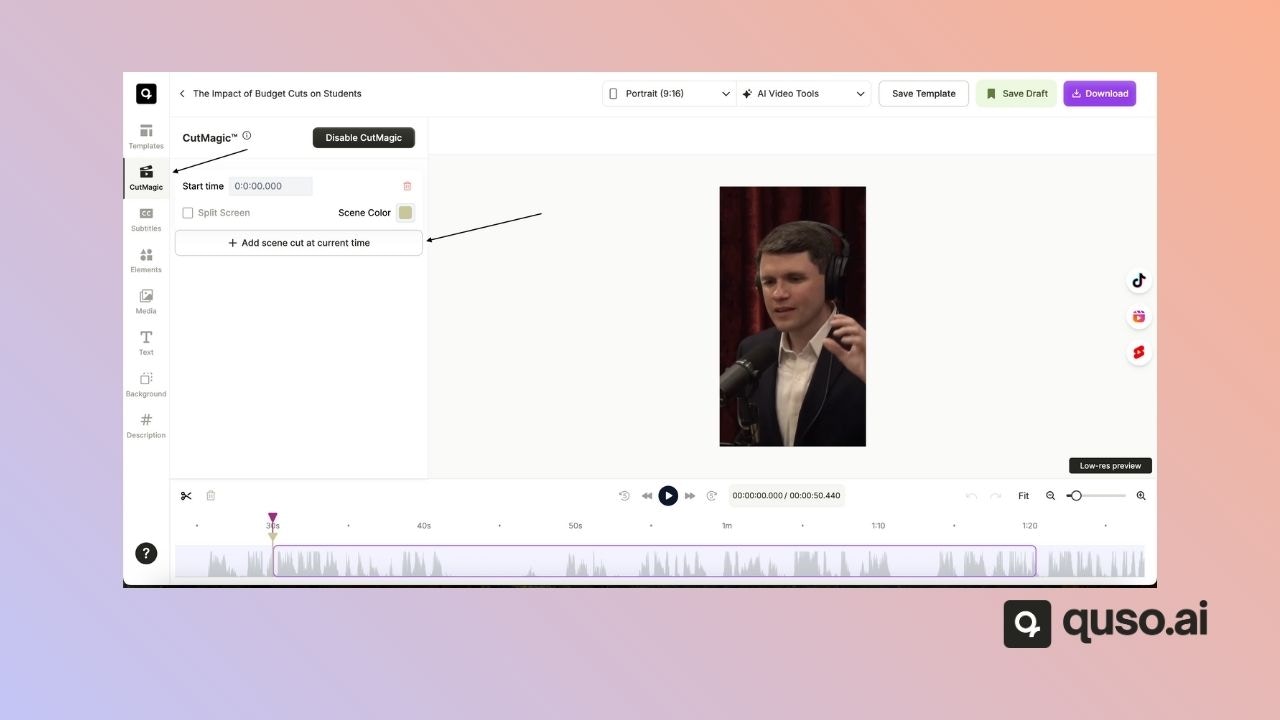
How do I add a scene cut in CutMagic?
How do I add a scene cut in CutMagic?
Why were no clips generated from my video?
Why were no clips generated from my video?
- The video has little or no speech. AI Clips finds clips from what is said.
- The video is very short. Videos under about 3 minutes give few or no clips.
- The wrong language was selected. If you select English and the video is in French, no clips are generated.
Where do my downloaded videos go?
Where do my downloaded videos go?
Plans, Credits & Upgrades
How do credits work in quso.ai?
How do credits work in quso.ai?
- 1 credit = 1 minute of imported video, rounded up.
- The cost is shown before processing starts.
- Editing, downloading and publishing don’t use credits.
- Monthly plan credits reset each month and don’t roll over. Annual plans get all 12 months of credits upfront.
- Add-on credits don’t expire.
- Failed imports are refunded automatically.
- In team workspaces, members share the credits.
What plans does quso.ai have?
What plans does quso.ai have?
What does the “Upgrade” message mean?
What does the “Upgrade” message mean?
Is the free plan available in my country?
Is the free plan available in my country?
Can the Plus plan publish to YouTube?
Can the Plus plan publish to YouTube?
Billing & Currency
How do I change the billing currency?
How do I change the billing currency?
What is quso.ai's refund policy?
What is quso.ai's refund policy?
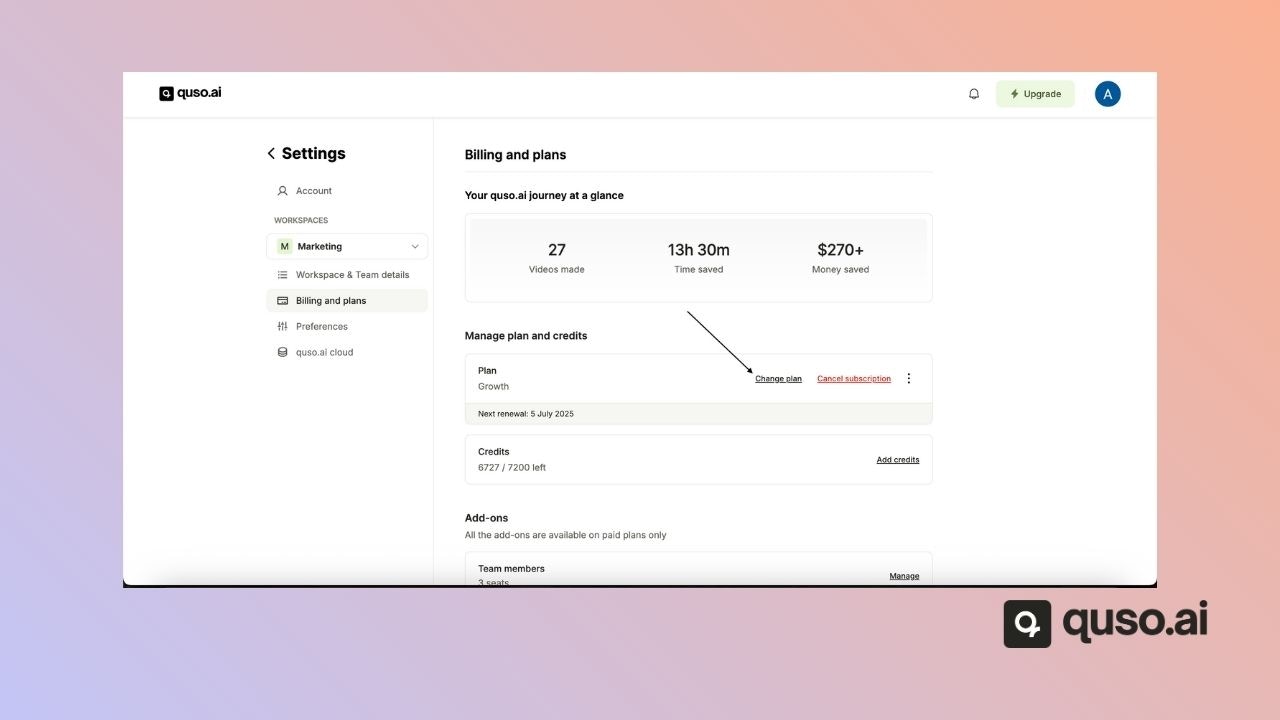
How do I cancel my subscription?
How do I cancel my subscription?
- Go to Settings → Billing & Plans.
- Click Cancel Plan.
-
Your plan stays active until the end of the billing period.
Platform Navigation & UI
Troubleshooting
Why can't I upload my video?
Why can't I upload my video?
- Format: MP4, MOV or WebM
- File size: within your plan’s limit (5 GB on Free, 15–25 GB on paid plans)
- Credits: the video can’t be longer than your remaining credits in minutes
- Browser: try Chrome, clear the cache or turn off extensions
Why did my video processing fail?
Why did my video processing fail?
- The video is longer than your remaining credits or the 4-hour link limit
- The wrong language was selected
- The video has no speech
Why can't I download or play my video?
Why can't I download or play my video?
- Download again on a stable connection
- Make sure your device has free space
- If it still fails, email [email protected]
Why does my video look blurry?
Why does my video look blurry?
- Free plan exports are 720p. Paid plans export 1080p.
- Check the quality of the original video. quso.ai can’t add detail that isn’t there.
- If it’s still blurry, email [email protected].
Account Management
I forgot my password. What should I do?
I forgot my password. What should I do?
I didn't receive a verification email. What should I do?
I didn't receive a verification email. What should I do?
- Check your spam folder
- Make sure you typed your email correctly
- Request the email again from the login page
- If it still doesn’t arrive, email [email protected]
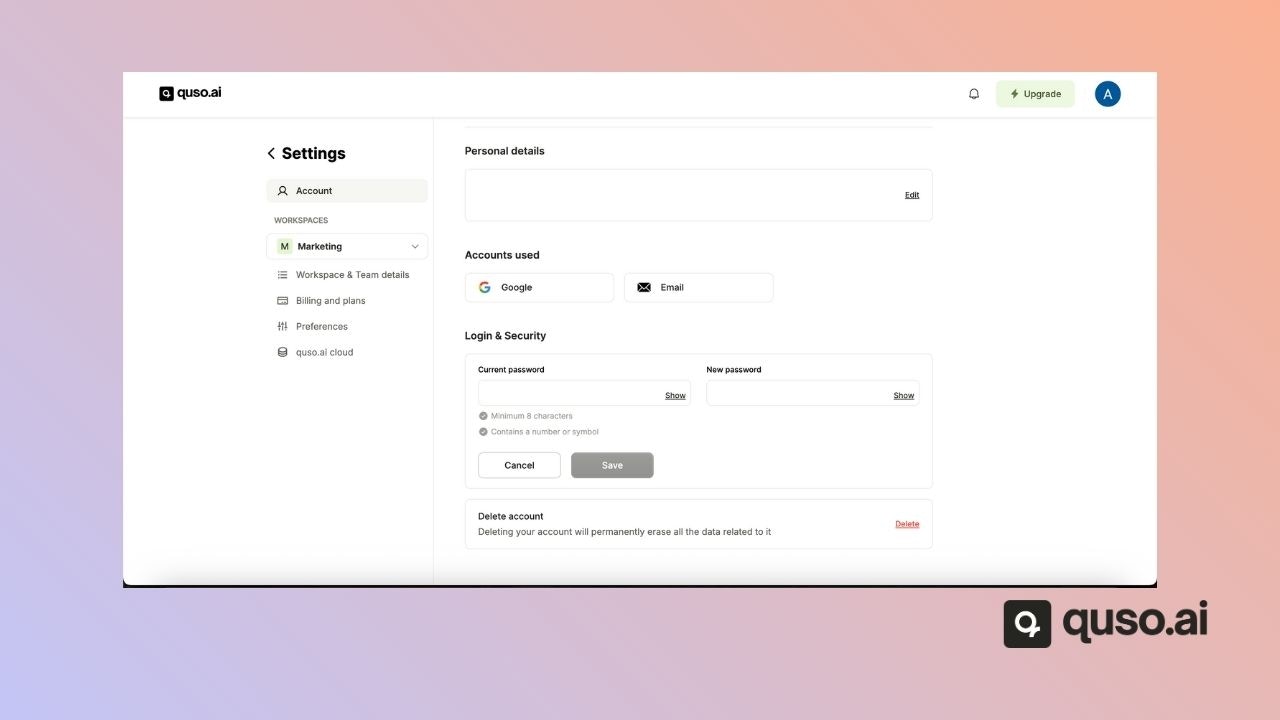
How do I change my password?
How do I change my password?
How do I log in to quso.ai?
How do I log in to quso.ai?
Is Vidyo.ai the same as quso.ai?
Is Vidyo.ai the same as quso.ai?
How do I delete my account?
How do I delete my account?
Publishing & Advanced Features
Does quso.ai have an API?
Does quso.ai have an API?
How do I schedule a post?
How do I schedule a post?
- After editing, click Publish on your clip and choose your accounts.
- Pick a date and time and click Schedule.
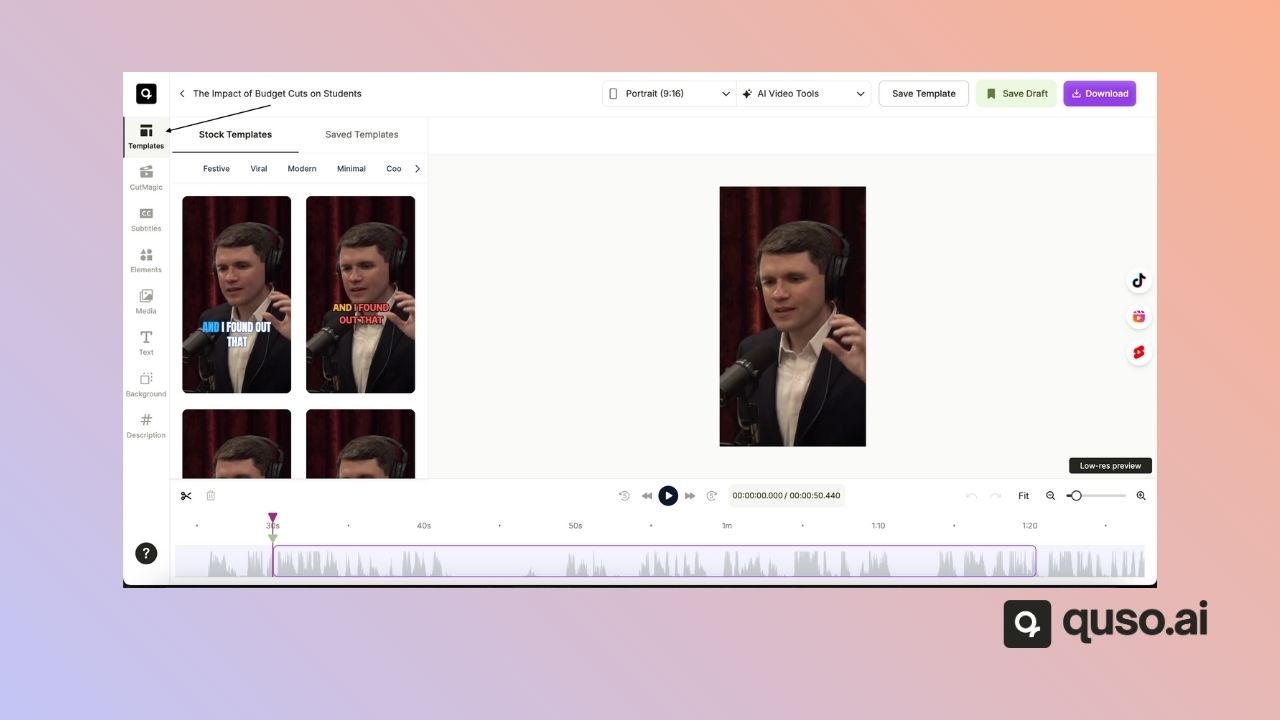
How do I use templates?
How do I use templates?
Support
How do I contact quso.ai support?
How do I contact quso.ai support?
- Use the Help button in the app, or the chat widget on this page
- Email [email protected]